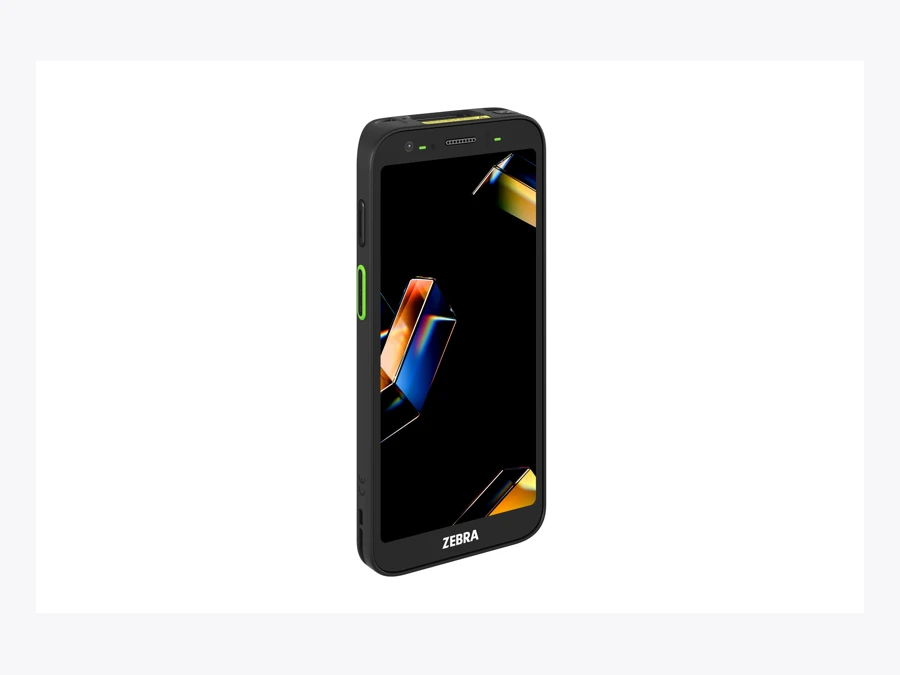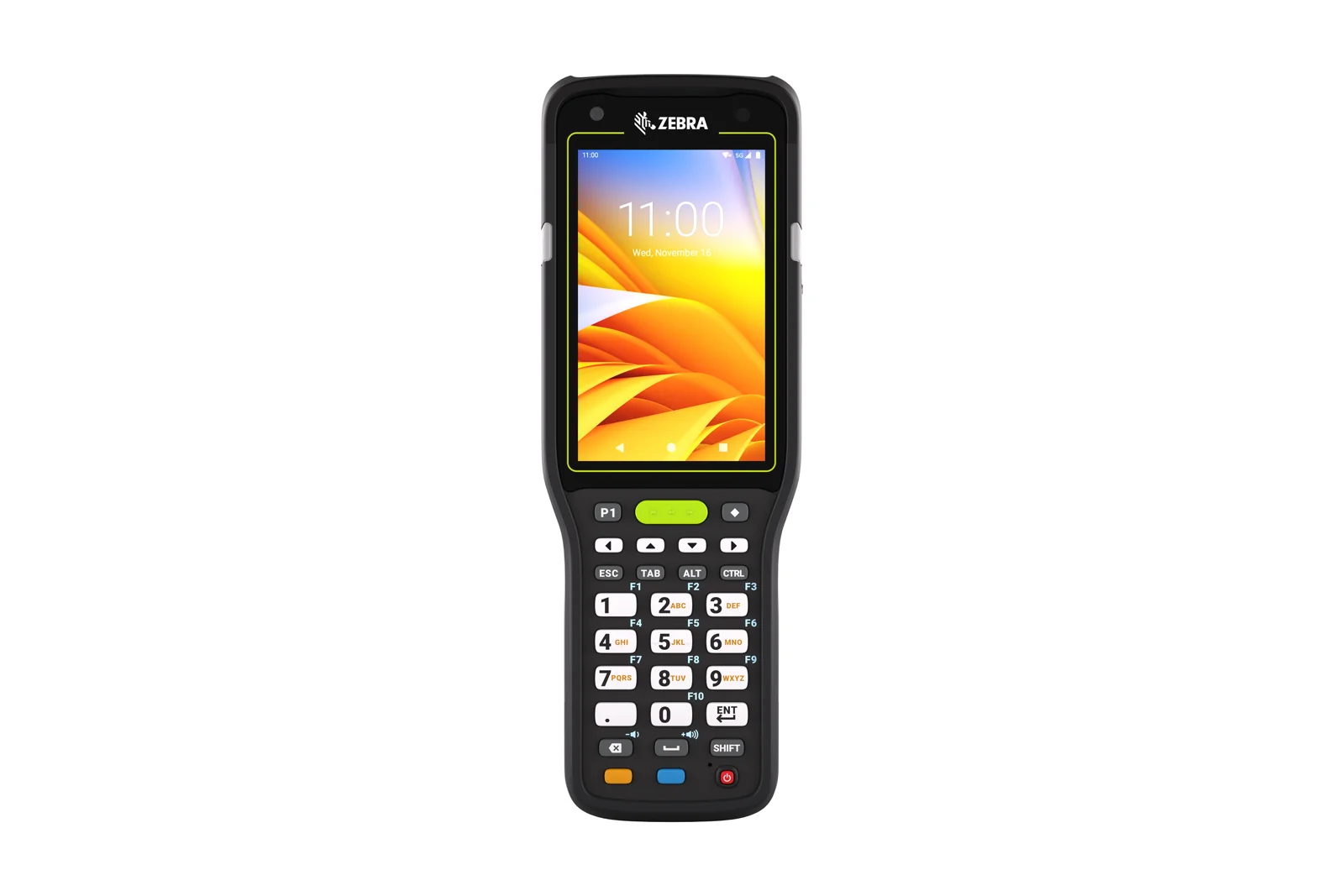

Product photograph identifies the model described. Workplace photos illustrate the tasks and do not establish model-specific software compatibility.
The Zebra MC3450 is worth evaluating through a complete warehouse task, not only a list of radio and scanner features. Ask an employee to receive goods, enter the relevant quantity, confirm a location, and recover from an interruption on the proposed device.
This guide helps an operations manager prepare that evaluation. It separates the manufacturer's model information from the decisions your app, network, and warehouse procedure must make. Confirm the exact orderable configuration with a hardware partner before comparing a larger deployment.
Understand the MC3400 series choice
Zebra's MC3400-series page lists the MC3400 and MC3450 and presents straight-shooter and gun formats. Its model information describes Wi-Fi 6E and 5G connectivity for the MC3450. Use the current manufacturer information for the specific configuration under review.
Start by identifying where employees work. A receiving bench, a warehouse aisle, and a route between buildings can require different handling and connectivity tests. An extra connection option is useful when the process and coverage justify it.
Ask the partner to identify the exact scanner, keypad, battery, and accessory combination on the quote. Keep those details with the pilot records. A successful trial on one configuration is not proof that a differently configured unit behaves identically.
Test the scan and quantity sequence together
Choose real product labels and the quantity units used by the operation. Ask the employee to scan, review the identified item, enter the quantity, and confirm the business action. Watch the complete sequence rather than counting successful reads alone.
Include repetitive quantity entry. The proposed keypad and screen layout should support the way employees enter, correct, and confirm information. Ask staff to explain which keys they expect to use and how they notice an incorrect entry.
Test a wrong barcode and an unreadable label. Decide whether the app should reject the action, request a controlled search, or refer the item for review. Keep the fallback understandable so an exception does not become an undocumented stock movement.
Compare the physical formats on the actual job
Give employees the proposed format and carrying arrangement, then ask them to complete a representative sequence. Consider how they hold the device while carrying goods, pushing a cart, or checking a shelf location.
Use the trial to compare repeated scanning and occasional data entry with tasks that need longer screen interaction. Record where the employee needs to reposition the device or use a second hand. These observations help distinguish an app-layout issue from a hardware-handling issue.
Review the accessories as part of the system. A case, strap, holder, or charging cradle should belong to the approved configuration and fit the work area. Do not leave accessory selection until after the main device order.
Walk the full connectivity route
Test the areas where the device will be used, including transitions between them. Confirm the intended network path and which records the employee needs while moving. The relevant result is a completed, understandable task, not merely a network icon.
For cellular use, ask the partner to confirm the regional model and service arrangement. Include the app's behavior during a change or interruption in connectivity. Separate those requirements from the hardware's published radio capabilities.
Ask how pending work is shown and recovered. An employee should know whether a transaction was accepted or still needs attention. Demonstrate a retry under the supported procedure and inspect the final record for the intended quantity and reference.
Compare hardware and application responsibilities
The table below helps keep the demonstration focused. It is a proposed evaluation tool rather than a list of features automatically included in the MC3450. Several important controls belong to the application and the connected business system.
| Question | Hardware evidence | Workflow evidence |
|---|---|---|
| Repeated scans | Selected scanner and physical format | Clear item confirmation |
| Quantity entry | Quoted keypad configuration | Correction and unit rules |
| Connectivity | Approved radios and service setup | Pending work and recovery |
| Charging | Compatible battery and cradle | Shift-readiness routine |
| Deployment | Documented model configuration | Matching app and permissions |
Build the pilot around warehouse exceptions
Choose a normal receipt, a short delivery, a wrong location, and an interrupted pick. Include a handover between employees so the team can inspect how unfinished work is represented.
Check the resulting stock and order records after each scenario. If the device displays completion but another team cannot find the transaction, investigate the complete connection rather than treating the handheld screen as sufficient evidence.
Measure task completion, corrections, and employee feedback. Compare like-for-like orders and working periods with your existing process. A useful pilot identifies which combination of device, app, and procedure improves the work.
Prepare the fleet routine before expanding
Decide where devices charge, who checks readiness, and how a replacement receives the correct settings. Test an app restart and a device replacement using the actual deployment process.
Record the OS build, app version, scanner settings, network configuration, and permissions that produced the accepted result. Assign someone to review changes against that baseline. Staff need a clear route to report a problem that appears after an update.
Include partner service and accessory availability in the purchasing discussion. Ask how the business keeps working while equipment is repaired or replaced. Keep the software support responsibilities equally clear so an issue is not passed between suppliers without an owner.
How Raptool fits
Raptool WMS describes receiving, stock moves, picking, packing, shipping, and stock counts. Its handheld picking description includes one pick line at a time and rejection of a wrong location code. These provide concrete tasks for the software demonstration.
Confirm the Raptool Client, scan integration, app behavior, and business-system connection on the exact MC3450 and OS configuration. Do not infer model-specific validation from general platform support. Raptool provides software, while its partners supply the hardware and the agreed device service.
FAQ
Is the MC3450 the same as the MC3400?
They are separate models in the MC3400 series. Compare the manufacturer configuration information and the exact partner quote.
Does 5G guarantee connectivity across the site?
No. Test the regional configuration, service, coverage, and application behavior on the routes employees use.
Which physical format should we choose?
Have employees trial the proposed format during the real scan-and-entry sequence, including carrying goods and shift handover.
What should a WMS demo include?
Test a receipt, a pick, a wrong item or location, and an interrupted update. Inspect the final stock and order records.
Does Raptool supply the MC3450 hardware?
Raptool supplies software. Its hardware partners supply the selected equipment and confirm the device configuration and service arrangement.
Tags
Want to see how this could work in your warehouse? Book a demo and we will walk you through it.
Book a demo