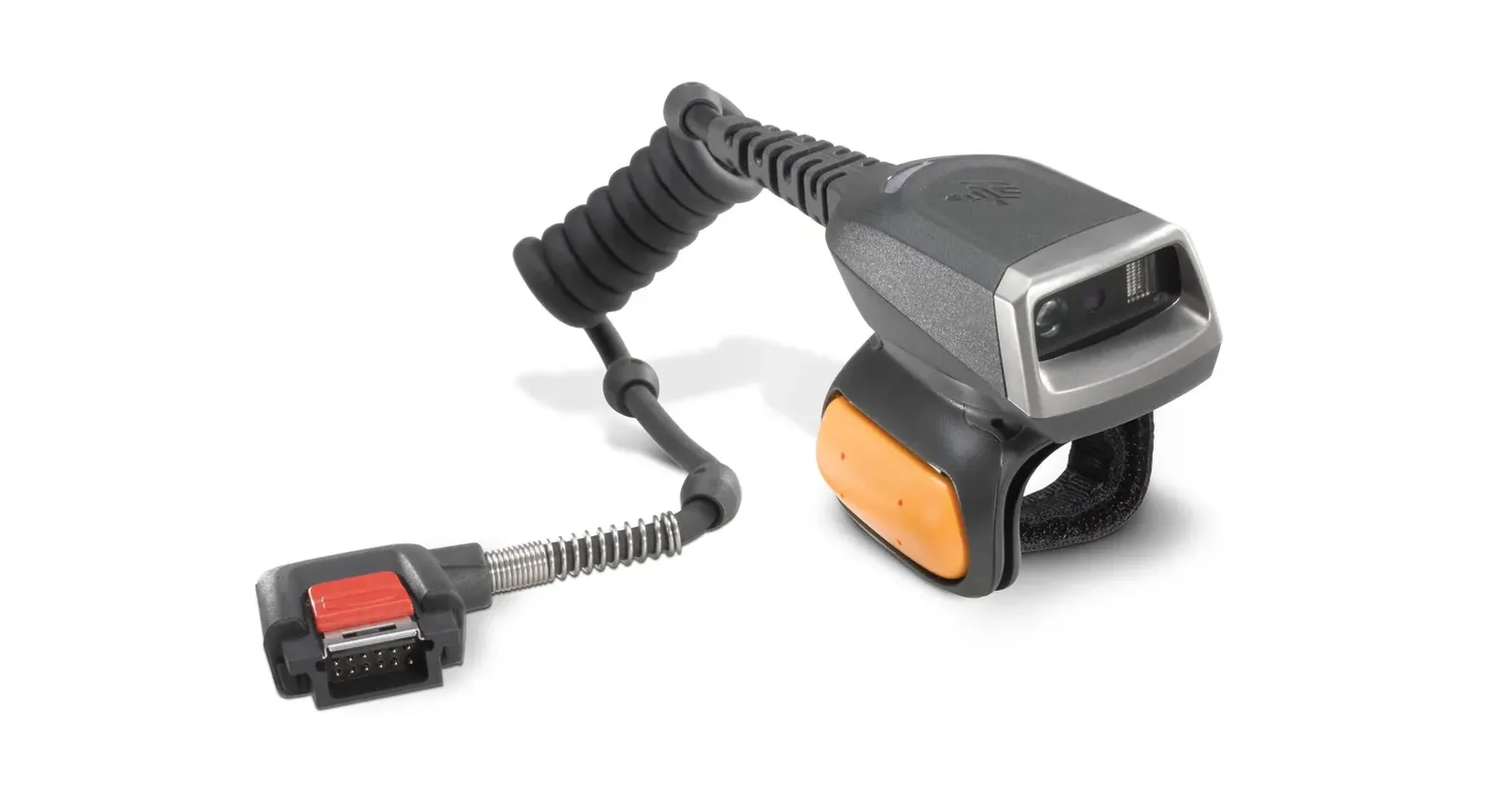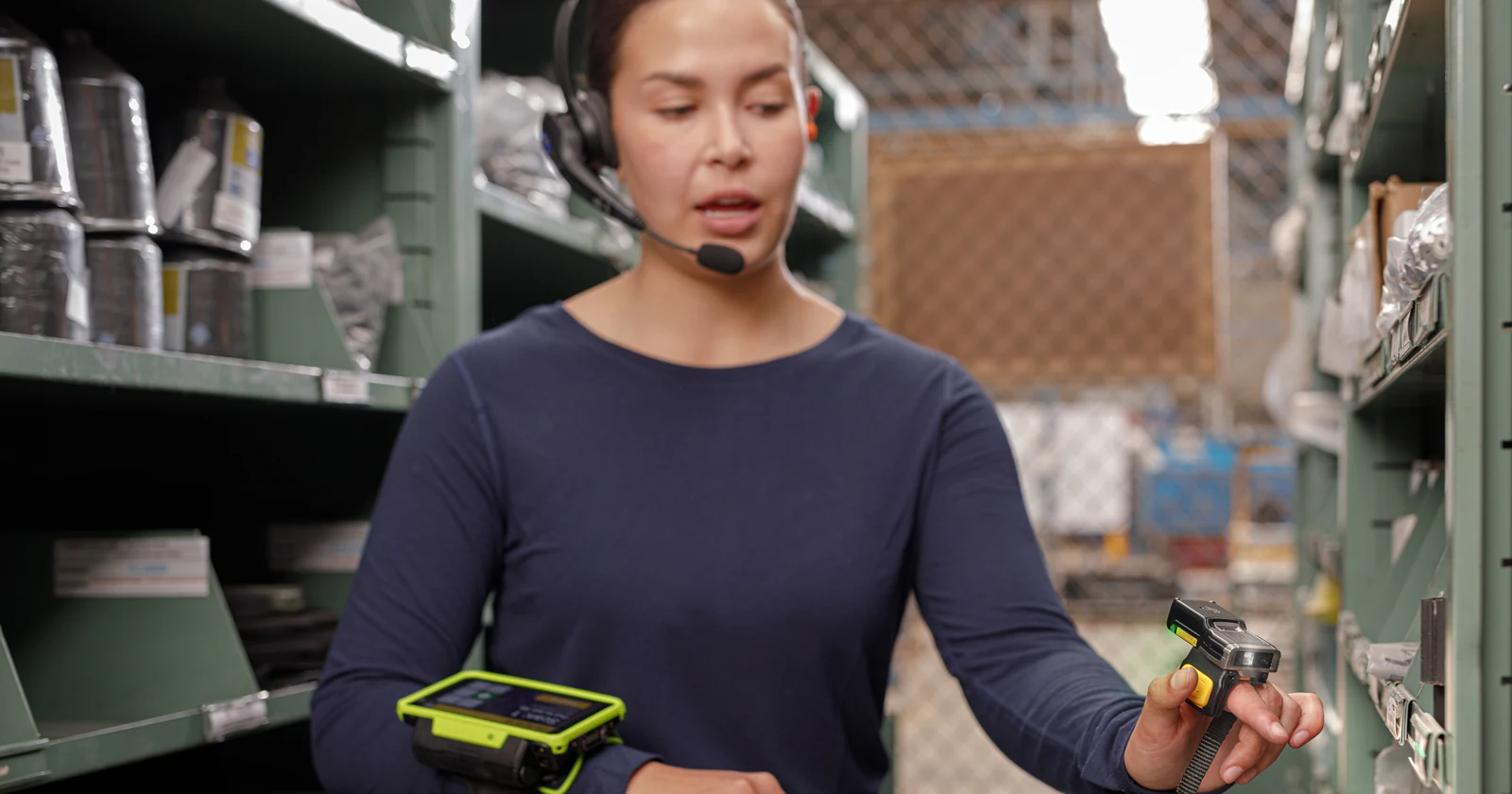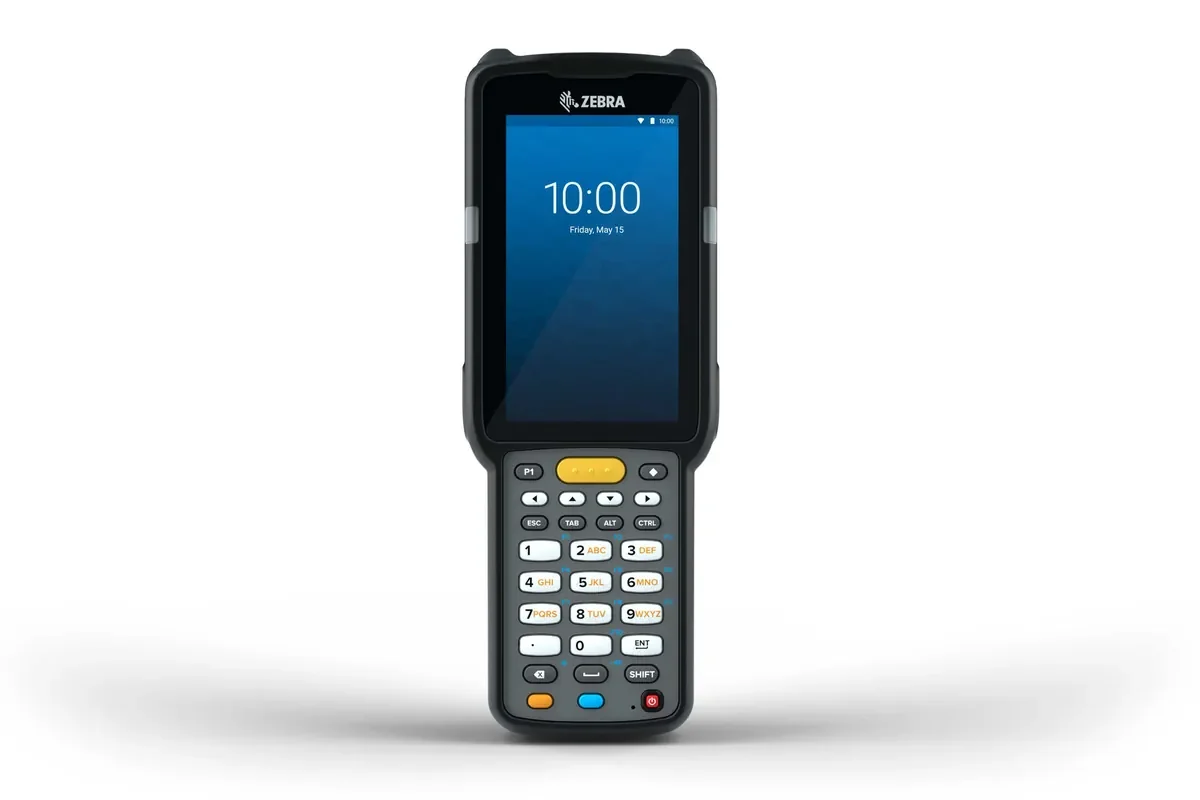

Product photograph identifies the model described. Workplace photos illustrate the tasks and do not establish model-specific software compatibility.
When employees already use Zebra MC3300x devices, a request for better performance should begin with the workflow they find difficult. The issue might be a screen sequence, a scanning setting, an unclear unit, or a pending transaction that nobody knows how to recover.
Review those observations before deciding that an app change or a new fleet is the only answer. This guide provides an operations-focused evaluation for existing equipment. It does not claim a current sales status, service end date, or automatic upgrade path for your particular devices.
Establish what the fleet actually contains
Use Zebra's MC3300x specification and the device identifiers to confirm the equipment under review. The manufacturer describes a range of configurations; keep the relevant form, keypad, and scanning combination visible in the pilot record.
Record the installed OS build and app version as well. Zebra also publishes an MC3300x reference guide for Android 11, but a guide title does not establish the installed state of every unit or current support entitlement.
Include examples from different shifts and purchasing batches if the fleet is mixed. Ask staff whether some devices behave differently. A useful review begins by separating an inconsistent setup from a problem shared by the whole workflow.
Observe one task from start to finish
Choose a representative pick or receipt and watch an employee complete it. Note each scan, key entry, confirmation, and screen change. Ask where they need to pause, repeat an action, or consult another person.
Separate the time needed to perform the physical job from time spent interpreting the app. A slow transaction might involve finding stock, entering information, or waiting for a connected system. Each calls for a different investigation.
Keep the employee's explanation with the observation. Experienced staff often know which exceptions cause the most trouble. Use their examples to build the pilot scenarios rather than relying only on a clean demonstration order.
Align the keypad and app sequence
List the fields staff enter frequently and confirm the expected unit for each. If quantity entry happens after a scan, show enough context for the employee to notice the wrong product or unit before confirming.
Test corrections deliberately. Enter an incorrect quantity and follow the intended recovery route. The app should make the task status understandable; staff should not need an undocumented key sequence to repair an ordinary mistake.
Review the screen layout on the actual device. Long descriptions, hidden buttons, and information meant for a larger display can make a mobile task difficult. Ask the app owner to test the proposed layout with the employees who will use it.
Test the scanner against real labels
Use the products and locations from the operation, including labels that staff find awkward. Keep the selected scanner configuration and connection settings in the test record. Do not assume that every unit with the same family name has an identical scanning setup.
Include a wrong item and a wrong location. Ask which check belongs in the app and how the employee understands the response. Capturing a code and validating a business action are separate parts of the workflow.
Agree the fallback for a damaged or missing barcode. A controlled search or exception record may be needed, depending on the process. Keep the fallback visible enough that staff do not create unofficial shortcuts to finish a task.
Compare causes before choosing a change
The table below is a diagnostic checklist for the operations discussion. It does not assign every problem to the handheld or promise a default app control. Use the observed evidence to choose which team investigates first.
| Observed problem | Inspect first | Evidence to compare |
|---|---|---|
| Repeated scan attempts | Labels, scanner configuration, and app input | Representative labels on approved units |
| Quantity corrections | Units and screen sequence | Expected item and quantity context |
| Pending work | Connection and app status | Final business record after recovery |
| Different device behavior | OS, settings, and app version | Accepted configuration record |
| Shift-handover confusion | Task and user ownership | Second employee resumes the job |
Make shared-device use repeatable
Decide how employees sign in, receive tasks, and hand over unfinished work. Test a shift change during a partially completed job. The next person should be able to identify the task status without relying on a verbal explanation alone.
Include charging and device readiness in the review. Ask who checks equipment before use and how a replacement receives the accepted settings. Keep faulty or uncertain equipment clearly identified under the support procedure.
Record the configuration that produces a successful pilot. If a replacement device behaves differently, compare it with that record before changing the business process. Repeatable setup is part of a useful shared-device workflow.
Plan changes with the responsible support teams
Ask the hardware partner about current service and software options for the exact units. Have the app owner confirm the proposed build and integration requirements. Do not infer a future support commitment from an older specification or reference guide.
Change a manageable group and retest the agreed scenarios. Include scanning, quantity correction, an interrupted submission, and the final stock or order record. Check that another employee can reproduce the result on a second unit.
Compare task completion, corrections, unresolved exceptions, and staff feedback with the starting point. If replacement hardware is also considered, give it the same scenarios. That makes the decision about demonstrated operational value rather than the age of a model name alone.
How Raptool fits
Raptool WMS describes guided warehouse work including receiving, stock moves, picking, packing, shipping, and counts. Use a real task to discuss how the app should present information and handle corrections or wrong-location input.
Validate the Raptool Client, scanner interface, permissions, and connections on the exact MC3300x configuration and OS build. Model-specific acceptance should come from the pilot, not an assumption that every Android handheld behaves the same way. Raptool supplies software; hardware service is arranged with partners.
FAQ
Should we replace every MC3300x before reviewing the app?
Review the observed problem first, while confirming current device support with the partner. Compare reuse and replacement against the same business tasks.
Can all MC3300x devices be treated as identical?
Record the relevant configuration, OS build, app version, and settings. Check mixed batches before extending pilot conclusions to the fleet.
What should a scanning test include?
Use normal, damaged, wrong-item, and wrong-location labels, then inspect the app response and final transaction.
Does the Android 11 guide establish current support?
No. Confirm installed software, available support, and any proposed update path with the responsible suppliers.
How should Raptool be evaluated on an existing fleet?
Demonstrate the actual Client and WMS task on the proposed configuration, including corrections, handover, and connection recovery.
Tags
Want to see how this could work in your warehouse? Book a demo and we will walk you through it.
Book a demo