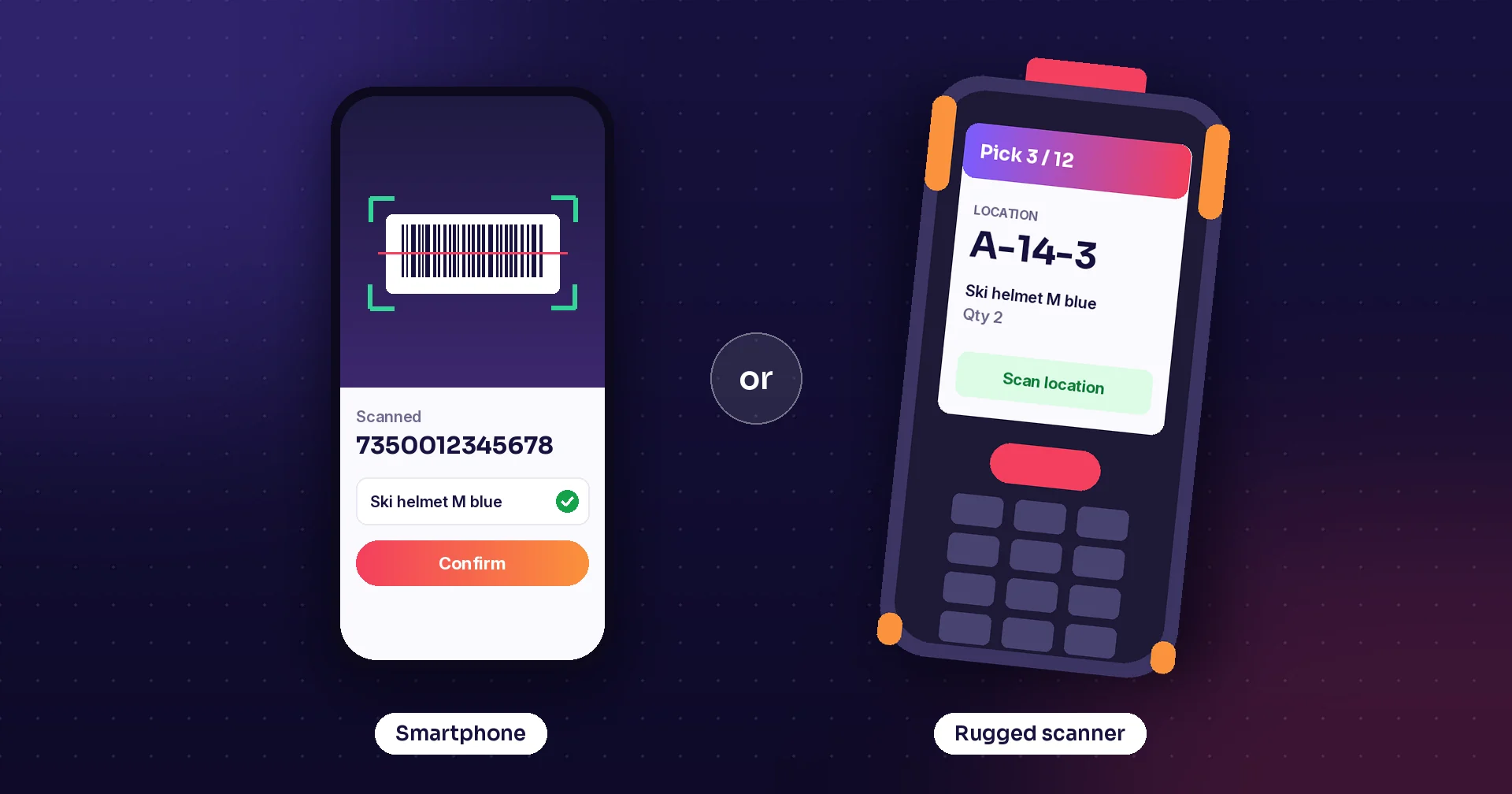
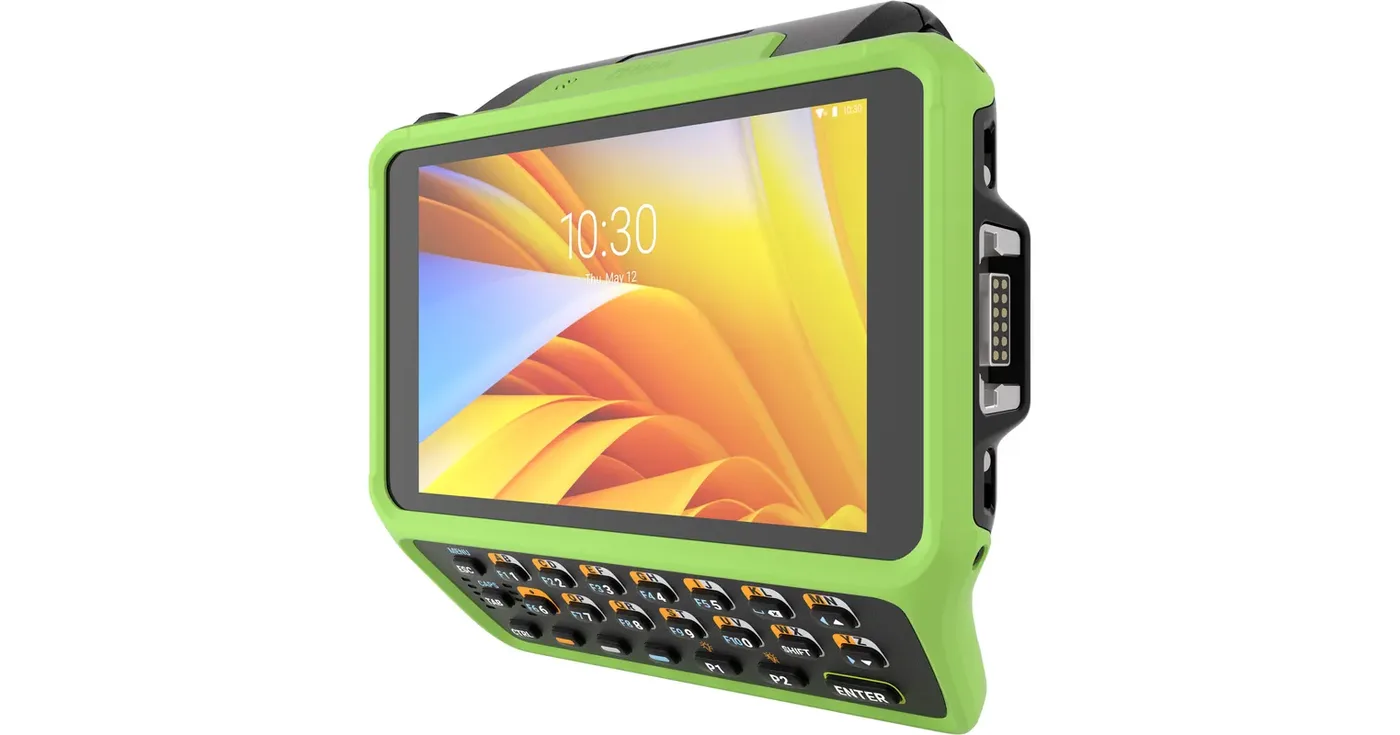
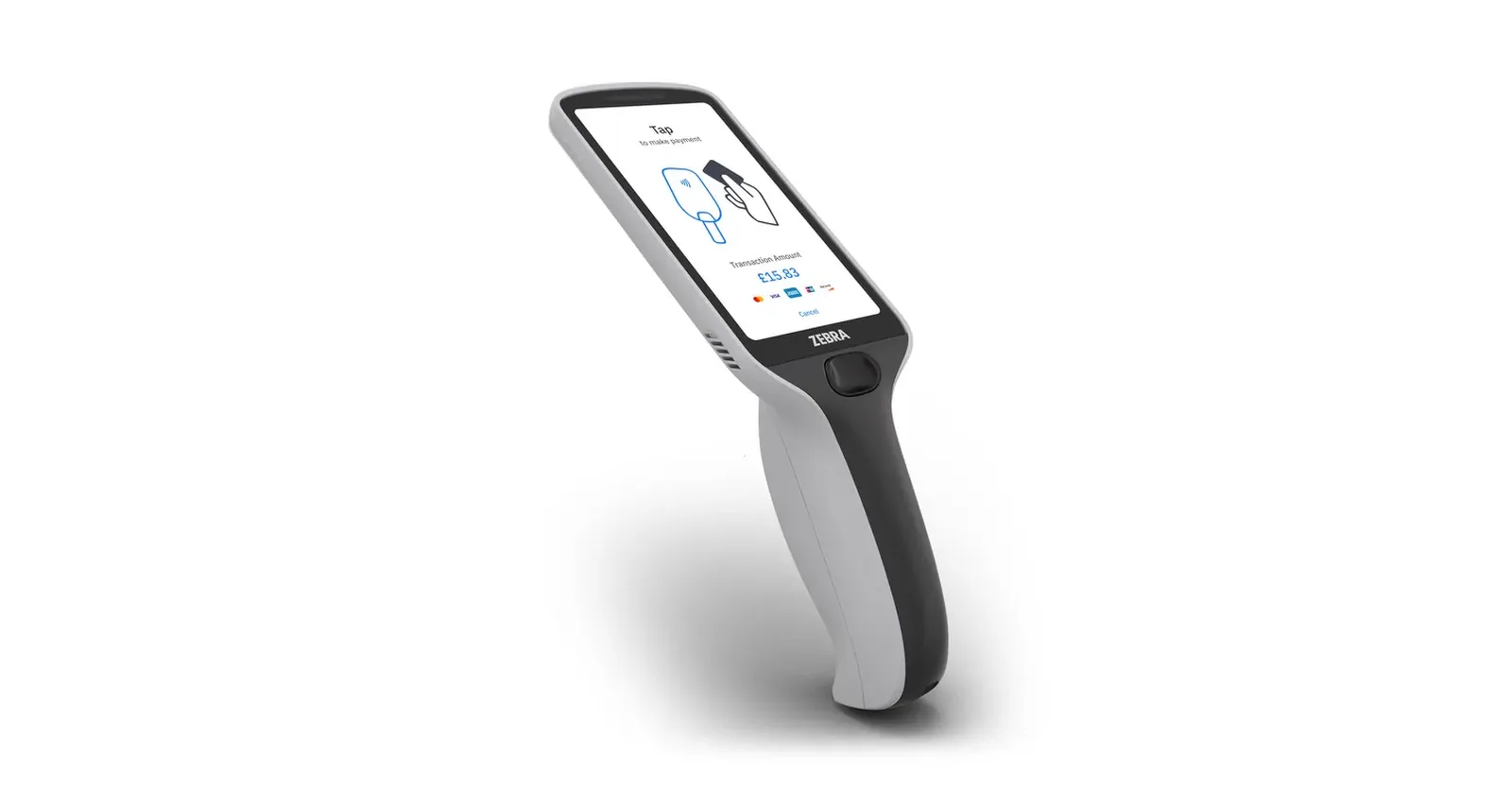
Buying handheld scanners is the easy part. Keeping ten, twenty or fifty of them charged, set up the same way, logged in to the right apps and back in the right place at the end of the shift is where the daily effort goes. When those routines are missing, devices disappear, batteries die mid-shift and every scanner behaves slightly differently.
This guide covers the routines that keep a fleet of handheld scanners or mobile computers working in a small or mid-size warehouse or store. None of it requires a large IT department, but it does require someone to own it.
Start with a device register
You cannot manage devices you have not listed. Keep a simple register with one row per device: model, serial number, a short device name or number, where it is normally used, who is responsible for it, purchase date and service contract.
Label each device and its charging slot with the same short name, such as "WH-07". When a device goes missing or breaks, everyone knows which one it is. When a user reports a problem, the device name in the report saves a lot of guesswork.
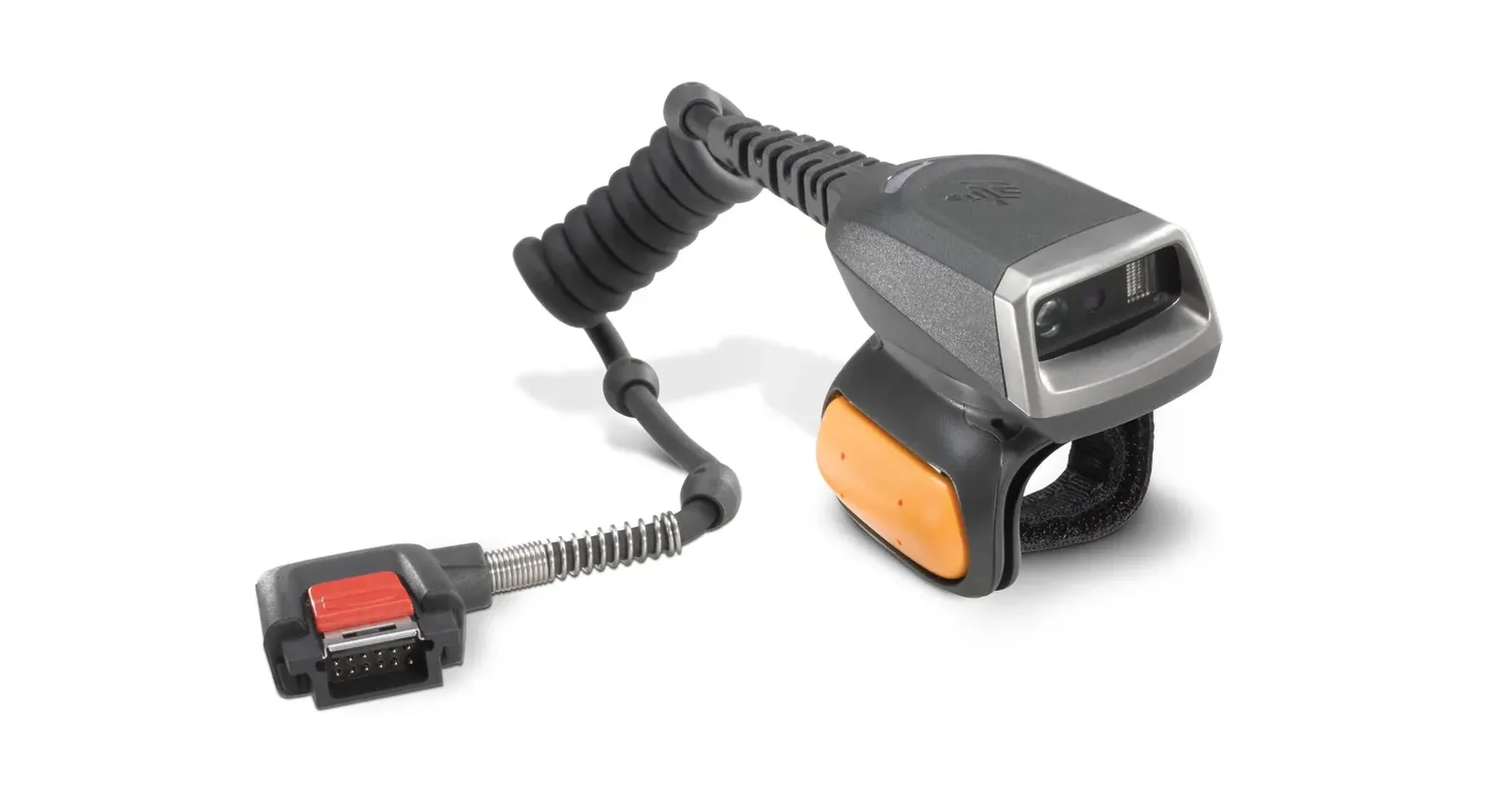
Include accessories in the register: spare batteries, cradles, trigger handles and wearable scanners. These go missing more often than the devices themselves.
Set every device up the same way
A standard setup is the most valuable routine you can have. Decide which apps are installed, which settings are locked, how the scanner is configured and which Wi-Fi networks the device joins. Write it down as a short checklist and use it for every new or repaired device.
When every device is set up the same way, training is simpler, users can pick up any device, and a problem on one device is easy to compare with another. Avoid personal apps and personal settings on shared work devices.
Keep the setup steps where the next person can find them. The person who set up the first devices is often not the one who sets up the replacements two years later.
Decide how people log in
Shared devices need a clear login rule. If staff pick any device from the rack at the start of a shift, each person should log in to the apps with their own account so that receipts, picks and counts are recorded against the right user. A shared generic login makes it impossible to trace who did what.
Keep logging in fast. If it takes too long, people start sharing accounts or leave devices logged in. A single sign-in that covers all the apps on the device helps, and so does a clear routine for logging out when the device goes back on charge.
Build a charging routine
Most mid-shift battery failures come from charging habits, not from the batteries themselves. Give every device a fixed charging slot, and make "back in the slot at the end of the shift" part of the shift handover.
If you run more than one shift, plan for devices that are needed again before they are fully charged. Spare batteries or extra devices on charge can cover the gap; ask your hardware partner what the models you use support. Mark batteries so that worn ones can be spotted and replaced before they cause problems on the floor.
Keep spares and a repair path
Decide how many spare devices you keep ready, set up and charged, so a broken device can be swapped in minutes rather than days. A small pool of spares is usually cheaper than a team waiting for a repair.
Agree on the repair path with your hardware partner before you need it: who sends a device for repair, what the service contract covers, and how long a repair is expected to take. Record every repair in the device register. A device that keeps coming back is a sign to look at how it is used or whether it should be replaced.
Plan updates instead of reacting to them
Operating systems, apps and scanner settings all change over time. Updating every device at once on a busy morning is a risk. Test updates on one or two devices first, with the real apps and the real workflows, then roll them out to the rest.
Keep a note of which version each group of devices runs. When a problem appears after an update, this tells you quickly whether the update could be the cause.
Check Wi-Fi where the work happens
A scanner that works in the office may struggle at the far end of the warehouse, in a cold store or in the yard. Walk the routes your staff use with a device in hand and note where the connection drops. Share the results with whoever runs your network.
Choose apps that keep working when the connection drops, and make sure users can see when their work has been sent. Dead spots are much less disruptive when the device keeps the work and syncs it later.
Routine overview
| Routine | What it covers | Suggested owner | How often |
|---|---|---|---|
| Device register | Model, serial number, name, location, contract | Fleet owner | On every change |
| Standard setup | Apps, settings, scanner configuration, Wi-Fi | IT or super user | Every new or repaired device |
| Logins | Own account per user, log out at shift end | Shift lead | Every shift |
| Charging | Fixed slots, battery checks, spare batteries | Shift lead | Every shift |
| Spares and repairs | Ready spares, repair path, repair log | Fleet owner | On every fault |
| Updates | Test group first, then rollout | IT or super user | When updates arrive |
| Wi-Fi check | Coverage along real work routes | IT or network partner | After layout changes |
How Raptool fits
Raptool apps run in the Raptool Client, which runs natively on Android, iOS, Windows and Mac and works with devices from Zebra, Honeywell, Datalogic and Newland. The Client gives your apps the scanner, the camera, the printer and the RFID reader, online or offline, with one Raptool Account login for all your apps and signed downloads. See the handheld scanner apps page for the apps that run on these devices.
The Raptool App Tool Suite includes Device Manager, to activate and manage every device from one place, and License Manager, to keep control of licenses and seats. Apps such as Raptool WMS keep working offline and sync when the device is back online.
Raptool does not sell hardware. Use the device comparison to shortlist models, and work with a hardware partner for purchase, accessories and service contracts.
FAQ
How many spare scanners should we keep?
It depends on how many devices you run and how quickly repairs come back. Keep enough spares, set up and charged, to swap a broken device in minutes, and review the number using your repair log.
Should staff share one login on shared devices?
No. Each person should log in with their own account so that receipts, picks and counts are recorded against the right user. Keep logins fast so people are not tempted to share accounts.
How do we stop batteries running out mid-shift?
Give every device a fixed charging slot, make returning it part of the shift handover, and mark batteries so worn ones are replaced early. Spare batteries or extra devices can cover back-to-back shifts.
What happens when a scanner loses Wi-Fi?
Raptool apps work offline, so the device keeps the work and syncs when it is back online. Walk your work routes to find dead spots and share them with your network provider.
Does Raptool sell handheld scanners?
No. Raptool makes the software. The Raptool Client runs on devices from makers such as Zebra, Honeywell, Datalogic and Newland, which you buy through a hardware partner.
Tags
Want to see how this could work in your business? Book a demo and we will walk you through it.
Book a demo