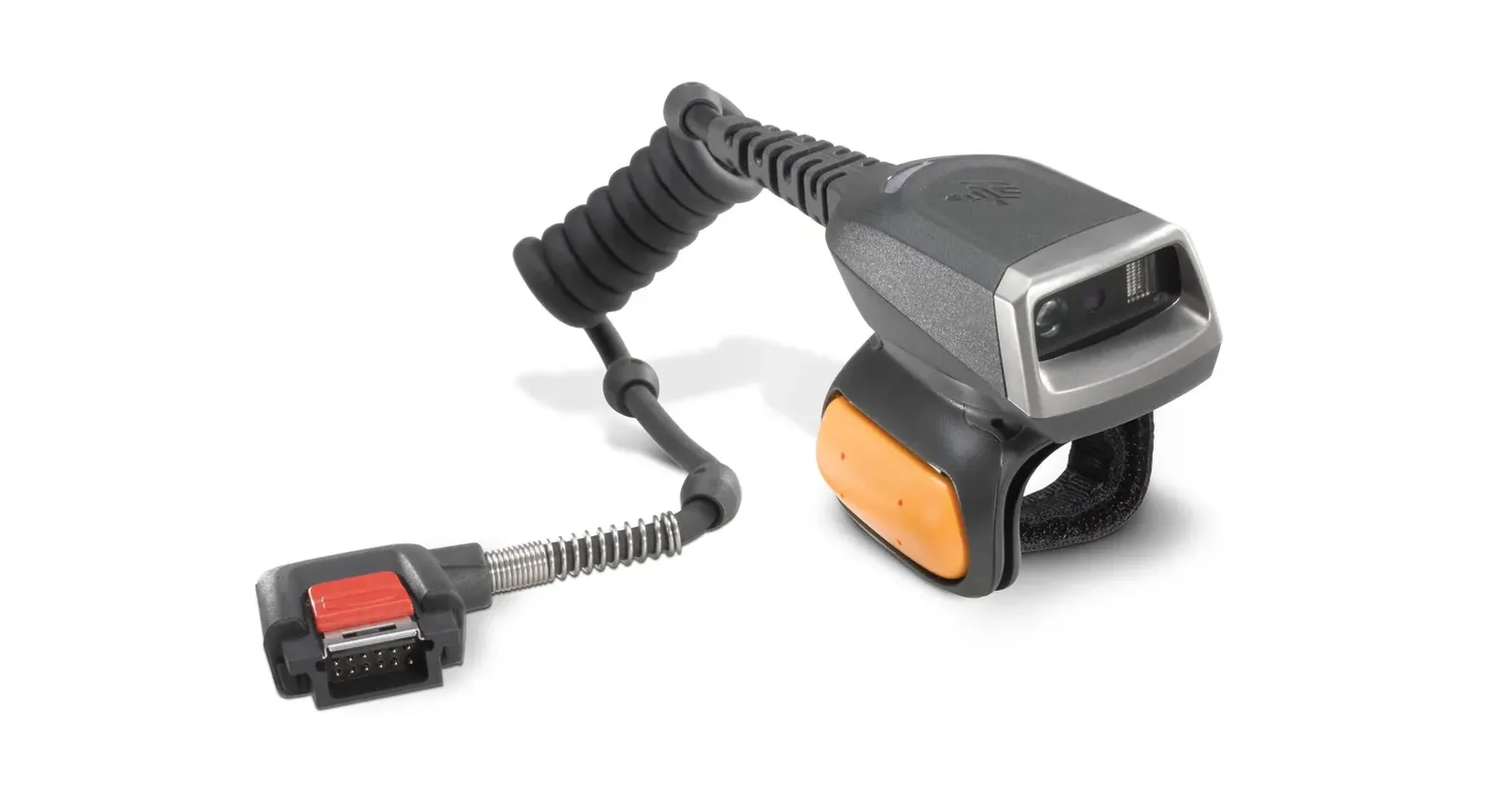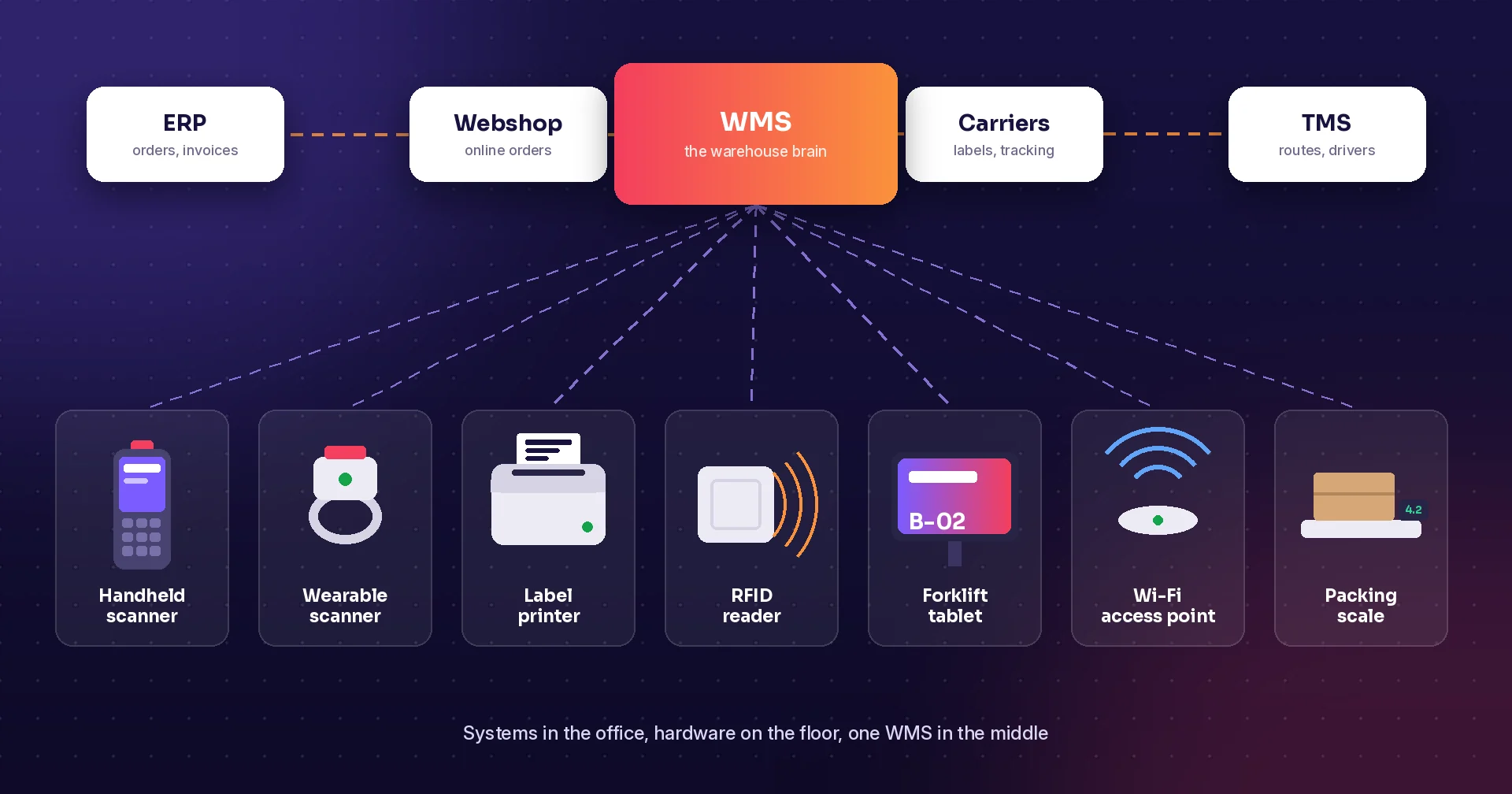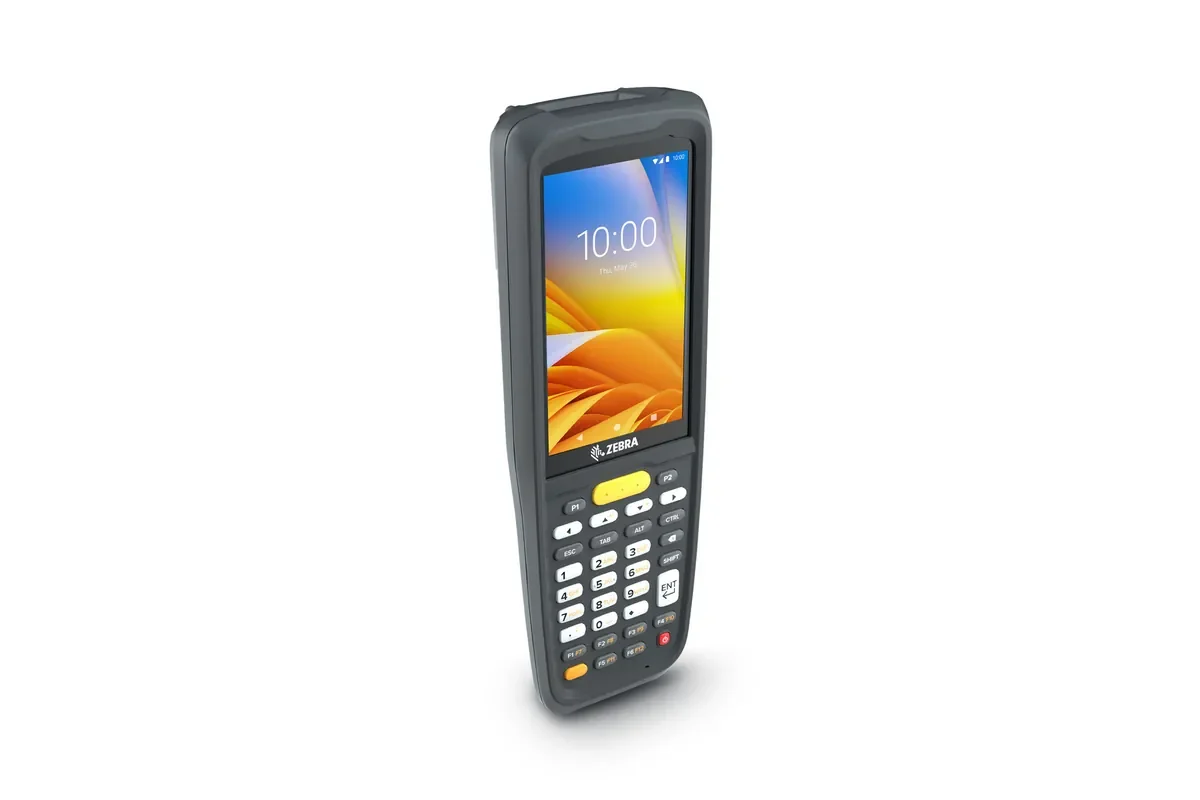
Product photograph identifies the model described. Workplace photos illustrate the tasks and do not establish model-specific software compatibility.
The search “Zebra MC2200 Android 11” may come from a business that already has devices and wants to reuse them, change an app, or understand a quoted configuration. Begin with what is actually installed rather than assuming every MC2200 in the building has the same software state.
This guide proposes an app and workflow review for that situation. It is not an instruction to install a particular OS package or a statement that Android 11 is the current supported choice for every deployment. Confirm the available support and approved update path with Zebra and the hardware partner.
Identify the device and installed software
Zebra publishes an MC2200/MC2700 Product Reference Guide for Android 11. Its existence establishes documentation for that platform combination; it does not identify the build, patch state, entitlement, or installed applications on your own unit.
Record the model identifier, OS build, relevant scanner settings, business app version, and connection configuration from the pilot device. Have the responsible support team review the record before anyone changes the fleet.
Include devices from different purchases if the operation has mixed batches. A similar housing does not show whether their builds and settings match. Keep variations visible so the pilot does not accidentally test a combination that only one employee uses.
Decide what the business wants to change
Separate a new workflow, an app update, an OS review, and a device replacement. Each can require different evidence and responsibilities. Avoid combining them into an unexplained instruction to update everything at once.
Choose the operational problem first. Perhaps staff enter a quantity twice, cannot interpret a pending receipt, or need a clearer picking screen. Describe the desired behavior so the software discussion is grounded in an observable task.
Ask the hardware partner about support, service, and supply for the exact model and configuration. Do not use the existence of an older guide as proof of current orderability or a future software commitment. Keep those questions separate from whether today's task can be demonstrated.
Test scanner behavior inside the intended app
Use real labels and the normal order of work. Confirm which item is identified, where the scan appears in the app, and what the employee must do before completing the transaction.
Include a long code, an unreadable label, and a code representing a different unit. Ask staff to explain the manual fallback and quantity rule. A successful scan into an empty text field is not an end-to-end receiving or picking test.
Check how scanning behaves after an app restart and after another screen receives focus. If the result changes, involve the app and device-support teams to identify the responsible settings. Keep the accepted behavior documented with the configuration.
Review connections and permissions
Ask which accounts, network profiles, and permissions the app requires. Test a representative user rather than relying only on an administrator's device. A pilot should show the experience of the employees who will use it.
Follow a completed task into the ERP or WMS record. Confirm how the app shows a failed submission or a delayed update. Staff need a supported recovery route and a clear way to distinguish accepted work from work still pending.
If offline work belongs to the proposed process, test the exact actions employees need during an interruption. Reconnect under the agreed procedure and inspect the resulting records. Do not assume local access means every connected system has already updated.
Build a controlled review checklist
The table below is a suggested preparation tool. It does not prescribe an OS installation method or guarantee support for a particular application. The responsible device, network, and app owners should agree the proposed configuration.
| Review area | Record first | Acceptance evidence |
|---|---|---|
| Device | Exact model and current OS build | Support team confirms the proposed setup |
| App | Version and business task | Task completes correctly |
| Scanning | Relevant device settings | Expected code reaches the right action |
| Connection | Account and network configuration | Accepted and pending states are clear |
| Change control | Owner and retest scope | Second device reproduces the result |
Treat updates as a support decision
Zebra's Android System Update documentation directs users to Zebra Support and Downloads for packages. Have the authorized support team confirm the correct package, requirements, and recovery plan for the device.
Do not turn an operations pilot into an improvised update experiment. Agree who approves a change, what settings must be retained, and which business tasks must be retested afterward. Keep a reference configuration for comparison.
Include authentication, scanning, printing where used, and synchronization in the regression check. An app opening successfully is only one result. The useful acceptance evidence is that the intended work still completes and its records remain correct.
Compare reuse with replacement fairly
Review the complete cost of keeping the proposed fleet in service: support, accessories, configuration work, app changes, and any downtime arrangements. Ask the partner to confirm the facts behind the comparison rather than assuming a particular lifecycle date.
If a replacement is considered, give it the same business scenarios. Compare handling, completion, corrections, and support responsibilities on representative work. Keep the app problem distinct from the hardware choice so the team understands what each option addresses.
Plan the rollout in a manageable group. Confirm that a second device can reproduce the accepted pilot before extending the change. Employees need a clear reporting route if their settings or behavior differ from the reference.
How Raptool fits
Raptool WMS and handheld scanner apps provide useful business scenarios for the review, including receiving, picking, moves, and counting. Define the app requirements around the tasks your team wants to improve.
Ask Raptool to verify the Client, scanning, permissions, and connected workflow on the exact MC2200 OS build. Historical Android documentation does not establish model-specific app compatibility by itself. Raptool supplies software; hardware and device-support responsibilities are agreed with partners.
FAQ
Does Zebra document the MC2200 with Android 11?
Yes. Zebra publishes an MC2200/MC2700 Product Reference Guide for Android 11.
Does that mean Android 11 is the current recommended OS?
Not by itself. Confirm current supported options and the approved path for the exact device with Zebra and the hardware partner.
Should we update before testing the app?
Have the responsible support teams agree the proposed configuration and test plan first. Avoid changing several variables without a documented baseline.
What should be included in the review?
Check the model, OS build, app version, scanner behavior, permissions, connections, and final business records.
Can Raptool compatibility be inferred from Android alone?
No. Validate the Client and the complete task on the exact device and OS build.
Tags
Want to see how this could work in your warehouse? Book a demo and we will walk you through it.
Book a demo