The barcode scans perfectly. Then someone needs to type a quantity, add a note or search for a customer, and the iPhone keyboard has disappeared. A Bluetooth scanner that makes manual entry awkward can turn a quick stock check into a repeated interruption.
The best choice depends on how the scanner connects to the application. For a simple form, a documented keyboard-toggle button may be enough. For frequent scanning mixed with typing, an app-integrated connection deserves a closer look. Below we compare four iOS-compatible scanners and the practical ways to keep manual entry usable.
Why does the keyboard disappear?
In HID mode, the scanner identifies itself as a keyboard and sends barcode characters as keystrokes. That makes it useful in ordinary text fields, but it can also cause the on-screen keyboard to stay hidden. Socket Mobile’s Basic Keyboard Mode documentation describes this keyboard-like input; Lightspeed documents the missing iPad keyboard as a consequence of using that mode. SocketScan user guide · Lightspeed’s keyboard explanation.
A Bluetooth connection alone tells you little about that behavior. HID over Bluetooth Low Energy is still keyboard input. A vendor’s app or SDK mode uses a different data path and requires the receiving software to support it. Switching to that mode without a compatible app can leave a paired scanner with nowhere useful to send its data.
Our recommendation: start with the application’s supported scanner list and connection mode. Then test scanning, manual typing and scanning again on the actual iPhone or iPad. A successful pairing is only the beginning.
Four scanners, four keyboard-control details to check
| Scanner | Why consider it? | Keyboard route |
|---|---|---|
| Socket Mobile SocketScan S720 | General-purpose 1D/2D scanning on paper and screens. | Power-button control in Basic Keyboard Mode; Application Mode with supported software is another route. |
| Zebra CS6080 | A companion scanner with HID and supported iOS SDK connections. | Enable Apple iOS Virtual Keyboard Toggle; use the configured scan-button or programmable-button action. |
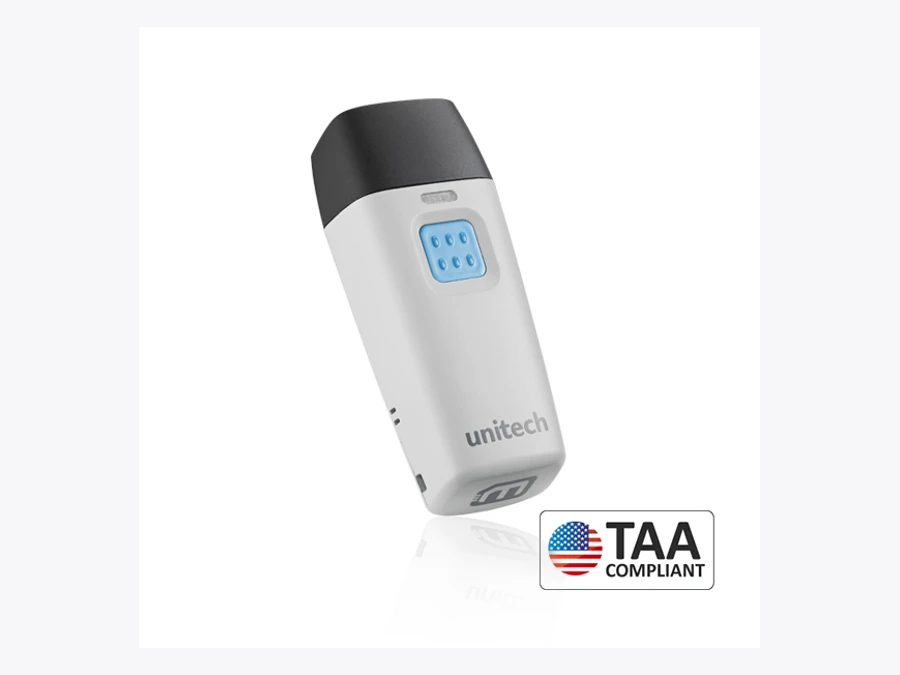
| Unitech MS912 Plus 2D | A small pocket scanner for mobile work. | Enable iOS Hotkey, then double-click the scan trigger. |
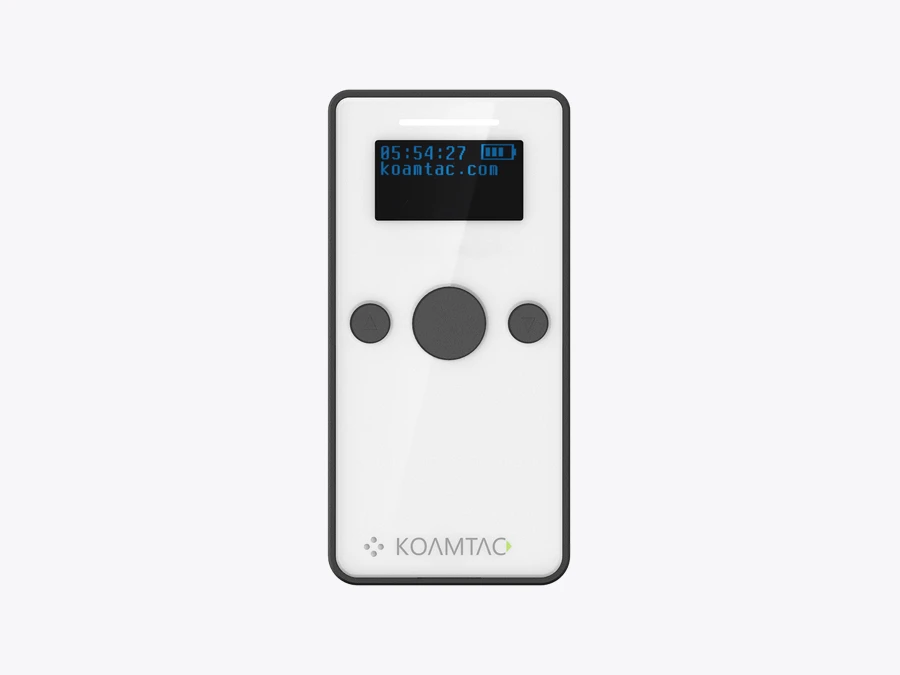
| KOAMTAC KDC280C-BLE | A BLE 2D companion scanner with a display and KTSync options. | Down-button toggle in the documented iOS HID setup; check the iOS Keyboard configuration. |
All four have published iOS connection guidance. Inclusion here does not certify every iOS release, third-party app or firmware combination. Product and keyboard instructions are linked in the sections below, with a downloadable comparison file for reuse: Excel comparison · CSV data.
SocketScan S720: a useful starting point for ordinary forms
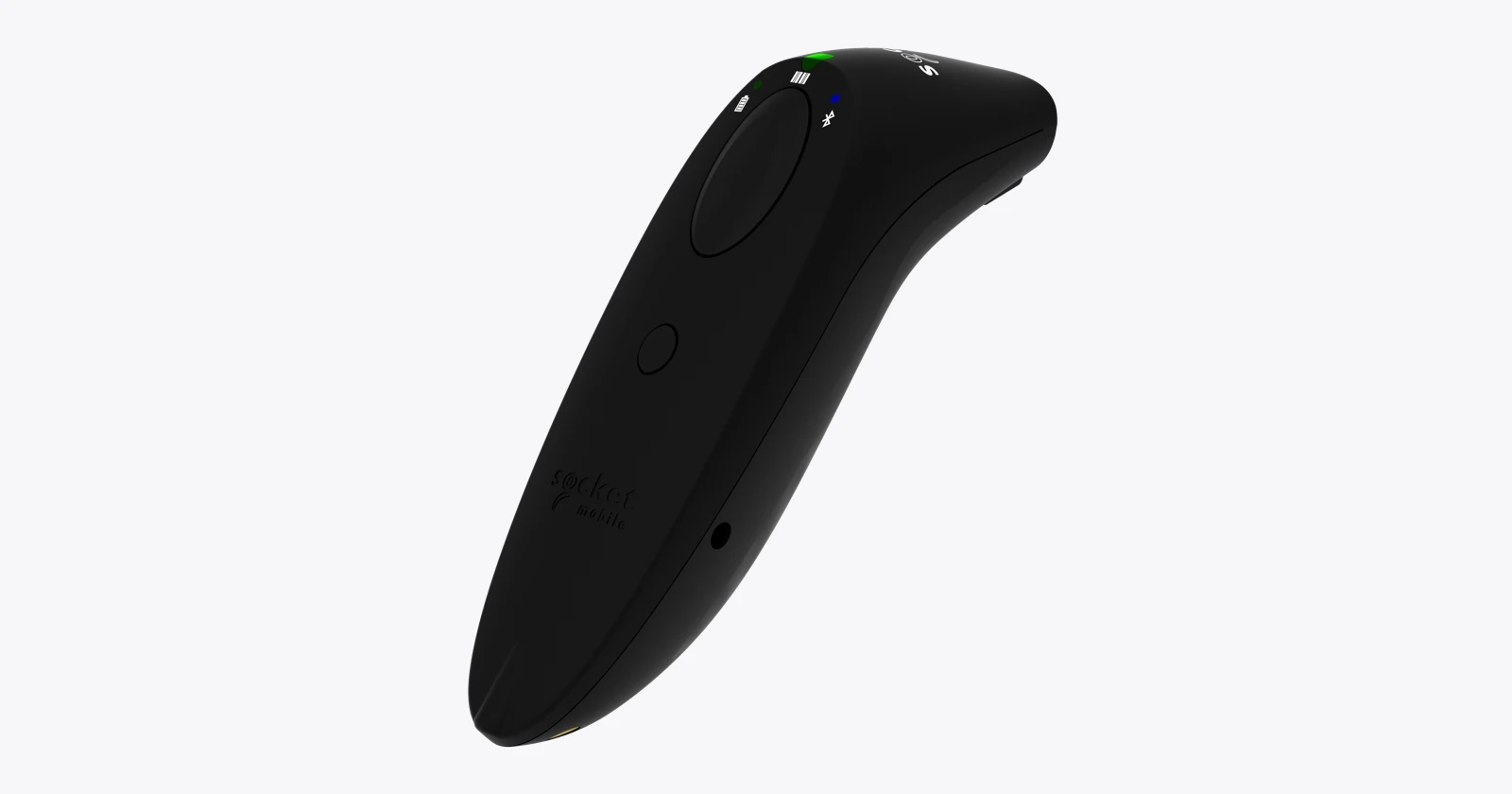
The S720 reads 1D and 2D codes from printed labels and screens. Its product page lists Basic HID and iOS Application Mode; the latter is intended for supported software. This makes it worth evaluating where the same business uses a POS app and browser-based stock forms. S720 product and connection details.
The deciding question is whether the app already supports Socket Mobile’s integration. If it does, follow that app’s setup rather than choosing Basic Mode simply because it pairs quickly. If it does not, test HID with the keyboard control or investigate the keyboard/browser options described below.
Zebra CS6080: useful control, with configuration to do first
The CS6080 is the cordless companion configuration in Zebra’s CS60 family. Zebra’s iOS SDK documentation lists MFi SSI and SSI over BLE support for this model. These require a compatible application; an ordinary browser field does not gain SDK support just because the scanner is connected. CS60 family · Zebra iOS SDK modes.
For a mixed counter and mobile workflow, include the charging and handover routine in the trial. The family has several accessories and corded/cordless configurations; order the actual cordless setup you need.
Unitech MS912 Plus 2D: small enough to carry, with a trigger shortcut
Unitech lists the MS912 Plus 2D at 30.7g and provides an iOS Hotkey function. This is the 2D model compared here; do not substitute instructions or capture capabilities from a similarly named 1D product. MS912 Plus 2D specifications.
A small scanner can suit intermittent stock checks and field work. Try the trigger with the way staff actually hold it, including the double-click needed for keyboard access. Verify that switching between quantity entry and scanning remains predictable.
KOAMTAC KDC280C-BLE: a display and more than one data path
The KDC280C-BLE is a 2D companion scanner with iOS support, KTSync software and an SDK route. Its guide distinguishes HID-BLE pairing from its app-connected BLE mode, which it labels SPP-BLE. That vendor-specific BLE label should not be interpreted as universal support for arbitrary Classic Bluetooth serial scanners on iOS. KDC280C-BLE product · KDC270/280 connection guide.
The display can help an operator inspect device status. Evaluate the connection method and data delivery in your target app before treating the scanner’s display as evidence that the business record was saved.
Solution 1: use the scanner’s keyboard-toggle control
This is often the least disruptive change for a simple HID setup. Keep the cursor in the field you want to edit, use the documented action, type the manual information, and test the next scan. Avoid guessing button combinations: a long press may power the scanner off or start a different command.
Socket Mobile S720
The 700-series guide identifies the power button as the on-screen keyboard control in iOS Basic Keyboard Mode. Lightspeed’s Socket Mobile instructions specify a quick double-click of that button while using Keyboard Mode. Confirm the action on the installed firmware; do not hold it down as though powering off. Socket guide, product controls · Lightspeed’s double-click instructions.
Zebra CS6080
Enable Apple iOS Virtual Keyboard Toggle before connecting the Apple device. Zebra documents a double-press of the Scan button or a single-press of the Programmable button, depending on configuration. The programmable button must have the Apple Show/Hide Keypad action assigned. The guide lists the toggle as disabled by default and warns that the Apple setting may be incompatible with non-iOS hosts. Use the correct guide and configuration barcodes for the fleet. CS6080 guide, printed pages 134 and 150.
Unitech MS912 Plus 2D
Enable iOS Hotkey, then double-click the scan button to show or hide the iOS touch keyboard. The checked manual describes the hotkey as enabled by default, but a previously configured unit may differ. It also provides a keyboard-toggle configuration barcode. MS912 Plus 2D manual, section 2.9.3.
KOAMTAC KDC280C-BLE
KOAMTAC documents the Down button as the companion-scanner keyboard toggle. Its iOS troubleshooting guidance also calls for enabling BT Config → iOS Keyboard for iOS 15 and later. Check the current firmware-specific instructions if the action does not work. KOAMTAC companion-scanner shortcuts · iOS Keyboard configuration.
The shortcut is worth demonstrating before purchase. Make it part of the handover instructions, and verify that a scan still reaches the intended field after manual entry. A shortcut that nobody knows about will not improve the shift.
Solution 2: let the app receive scanner data directly
For a workflow that frequently alternates between scanning and typing, a supported app/SDK connection is usually the route we would investigate first. It can deliver decoded data to the application separately from keyboard keystrokes, allowing the app to handle scan events and normal manual entry deliberately. This is a design recommendation, not a guarantee about every app’s keyboard behavior.
Socket Mobile calls its integrated route Application Mode; Zebra documents MFi SSI and SSI over BLE for the CS6080. KOAMTAC provides KTSync and SDK connection guidance. Follow the application’s supported pairing flow. A raw BLE connection, a different serial profile or a scanner appearing in Settings does not automatically create that integration. Socket connection modes · Zebra supported modes · KOAMTAC app connection guide.
Ask the software supplier to show a quantity correction while the scanner remains connected, followed by a second valid scan. Repeat after locking and unlocking the phone. For a Raptool proposal, demonstrate this exact route in the proposed client or web workflow; this article does not establish existing integration with any scanner listed.
Solution 3: use a supported scanning keyboard or browser
A keyboard extension can bridge a vendor’s app connection into text fields without changing the target application’s code. Socket Mobile’s SM Keyboard is intended to keep compatible readers in Application Mode while supplying a custom keyboard. Its SM Browser is another vendor option for scanning into web forms. These are Socket-specific routes, not utilities for every Bluetooth scanner. Socket Mobile utility apps.
KOAMTAC documents a KTSync Keyboard route for iOS. The KDC must be connected to KTSync and its keyboard selected in the target field; follow the guide’s setup and access requirements. KTSync on-screen keyboard guide.
These options need an application trial. Apple explains that secure text fields and phone-pad fields use the system keyboard, and an app can reject custom keyboard extensions entirely. Managed-device policy and any requested keyboard access also need review by the organization. A custom keyboard is therefore a possible bridge, not a universal way around every app restriction. Apple’s custom-keyboard limitations.
Solution 4: use the iPad’s own Show Keyboard control
Apple documents an iPad route: tap the Keyboard Shortcut button in the Shortcuts bar at the bottom of the screen, then tap Show Keyboard. With additional language keyboards, the language button offers another entry point. Use it when those controls are present in your app and iPadOS version. These are iPad instructions; do not present them as a matching iPhone menu. Apple: switch to the onscreen keyboard.
If that control is absent, return to the scanner’s documented shortcut or the supported app route. Android instructions for keeping a software keyboard visible with physical input are not interchangeable with iOS instructions.
Solution 5: keep a workable fallback for exceptions
Temporarily powering off or disconnecting the scanner is a useful diagnostic: if the keyboard returns, investigate the active scanner mode. It is a clumsy routine for repeated quantity entry. Before reconnecting, confirm the manual input and check where any later scans will go. Do not assume scans made while disconnected will be buffered or replayed safely.
At a fixed station, a real keyboard may make occasional typing practical even when the on-screen keyboard stays hidden. For low scan volume, an app’s supported camera-scanning feature may be sufficient. Both are workflow alternatives to test, including space, handling and application requirements.
Avoid making Forget Device or a factory reset the normal way to type a note. Those steps can change pairing or configuration and create a longer recovery job.
The test that matters: scan, type, scan again
- Pair in the intended mode and scan into the barcode field.
- Open the keyboard using the chosen route and enter a quantity and a short note.
- Scan the next item. Check that it enters the correct field once, including leading zeroes and punctuation.
- Repeat after app switching, a phone lock and a scanner sleep/reconnect cycle.
- Test the actual language layout and any Tab or Enter suffix. An automatic Enter must not submit an incomplete form.
- Confirm the saved business record. A scanner beep or visible text does not prove that the backend accepted the transaction.
HID needs particular attention to field focus. A scan can arrive wherever the cursor is active. Application integration can give software more control, but validation, duplicate handling and server acknowledgement still have to be designed and tested.
Repeated keyboard workarounds have a cost.
Assume a better setup removes 12 seconds of interruption on 60 occasions a day, across 250 working days. That releases 50 labor-hours a year, or €1,500 of labor capacity at €30 per hour, before equipment, licenses and integration costs. These are hypothetical inputs, not a measured scanner result or guaranteed cash saving.
For occasional manual input, a reliable toggle may be enough. For continual scanning and editing, prioritize an app-supported connection or a validated vendor bridge. Buy the combination that lets staff finish the form without repeatedly repairing the connection.
Family reference and configuration checks
Socket Mobile SocketScan S720 · technical details
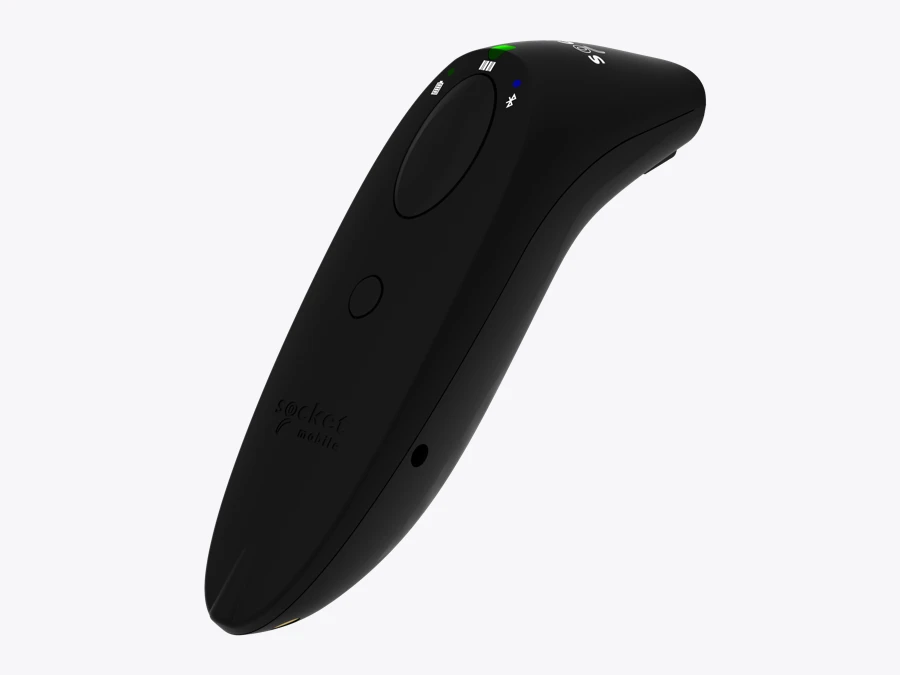
Socket Mobile SocketScan S720
Official product and configuration details
| Role to evaluate | General-purpose 1D/2D labels and screen codes |
|---|---|
| Published configuration notes | Bluetooth Classic; Basic HID and supported iOS Application Mode. |
| Before ordering | Power-button keyboard control in HID; use application-specific pairing where supported. |
Advantage to evaluate: General-purpose 1D/2D labels and screen codes.
Trade-off: Power-button keyboard control in HID; use application-specific pairing where supported.
Checked 16 October 2026. Family photograph, not certification of the pictured options or business-app compatibility. See the manufacturer’s current part-number list for complete specifications.
Zebra CS6080 · technical details
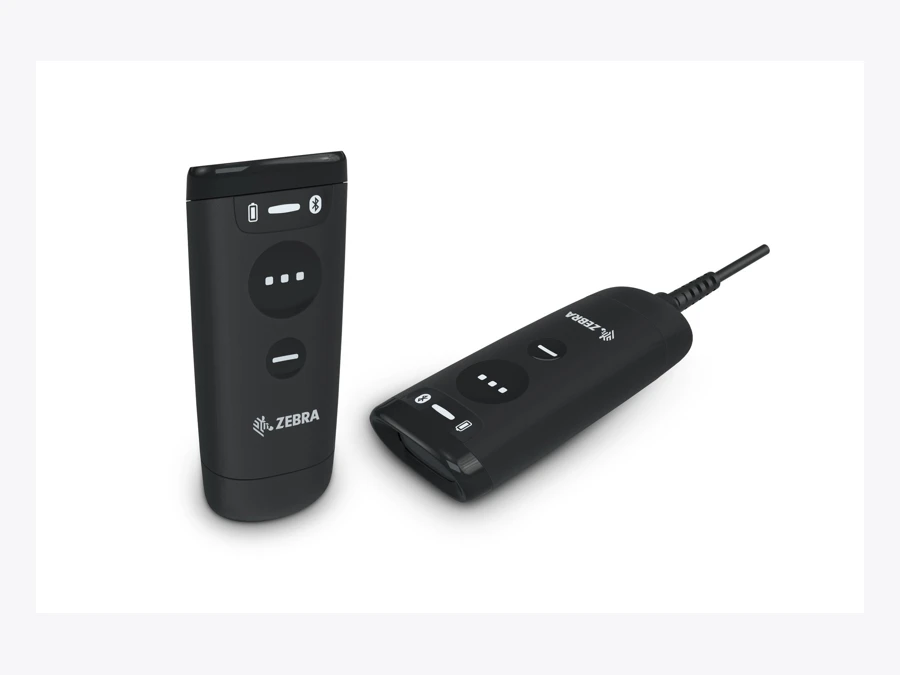
Zebra CS6080
Official product and configuration details
| Role to evaluate | Mobile companion and counter workflows |
|---|---|
| Published configuration notes | 1D/2D capture; iOS SDK supports MFi SSI and SSI over BLE. |
| Before ordering | Enable Apple keyboard toggle before pairing; configure the desired button. Image shows corded and cordless CS60 family options. |
Advantage to evaluate: Mobile companion and counter workflows.
Trade-off: Enable Apple keyboard toggle before pairing; configure the desired button. Image shows corded and cordless CS60 family options.
Checked 16 October 2026. Family photograph, not certification of the pictured options or business-app compatibility. See the manufacturer’s current part-number list for complete specifications.
Unitech MS912 Plus 2D · technical details
Unitech MS912 Plus 2D
Official product and configuration details
| Role to evaluate | Small pocket-scanner workflows |
|---|---|
| Published configuration notes | 1D/2D capture; 30.7g published weight; iOS Hotkey. |
| Before ordering | Enable the iOS Hotkey and double-click the scan trigger. Compare the 2D model, not the similarly named 1D device. |
Advantage to evaluate: Small pocket-scanner workflows.
Trade-off: Enable the iOS Hotkey and double-click the scan trigger. Compare the 2D model, not the similarly named 1D device.
Checked 16 October 2026. Family photograph, not certification of the pictured options or business-app compatibility. See the manufacturer’s current part-number list for complete specifications.
KOAMTAC KDC280C-BLE · technical details
KOAMTAC KDC280C-BLE
Official product and configuration details
| Role to evaluate | Companion scanning with display and KTSync options |
|---|---|
| Published configuration notes | 2D BLE scanner; HID and vendor app/SDK connection routes. |
| Before ordering | Check BT Config > iOS Keyboard and Down-button toggle; KTSync Keyboard needs its own setup. |
Advantage to evaluate: Companion scanning with display and KTSync options.
Trade-off: Check BT Config > iOS Keyboard and Down-button toggle; KTSync Keyboard needs its own setup.
Checked 16 October 2026. Family photograph, not certification of the pictured options or business-app compatibility. See the manufacturer’s current part-number list for complete specifications.
Questions before you order
Why does the iPhone or iPad keyboard disappear when a scanner connects?
In HID mode the scanner acts as a hardware keyboard. The software keyboard may stay hidden. Use the scanner’s documented keyboard toggle, the available iPad Show Keyboard control, or a compatible app-based connection.
Will changing the scanner to BLE mode fix the keyboard?
Not by itself. HID over BLE still acts as keyboard input. An app/SDK BLE connection requires the receiving application to support the scanner and its protocol.
Can SM Keyboard or KTSync Keyboard work in every app?
No. Use the matching supported vendor scanner and connection setup. Apple restricts custom keyboards in secure and phone-pad fields, and apps can reject them.
Should I disconnect the scanner whenever I need to type?
It can be a temporary diagnostic or fallback, but repeated disconnecting adds work. Test a documented toggle or a supported app connection before adopting that routine.
Sources and scope
Research checked 16 October 2026. Manufacturer claims are attributed; proposed task comparisons and the capacity example are our analysis. No independent device benchmark was performed.