A label looks simple until it reaches the shelf, the pallet or the carrier. The price is cut off, the barcode will not scan, or the text is too small to read from the aisle. Most of these problems start in the template, long before anyone presses Print.
This guide walks through how to plan a label template for a small or mid-size business: what the label is for, which data it carries, which barcode it uses, how it fits the printer, and how to test it before it goes live. The advice applies whether you print shelf labels in a store, box labels at receiving or shipping labels at packing.
Start with the job, not the layout
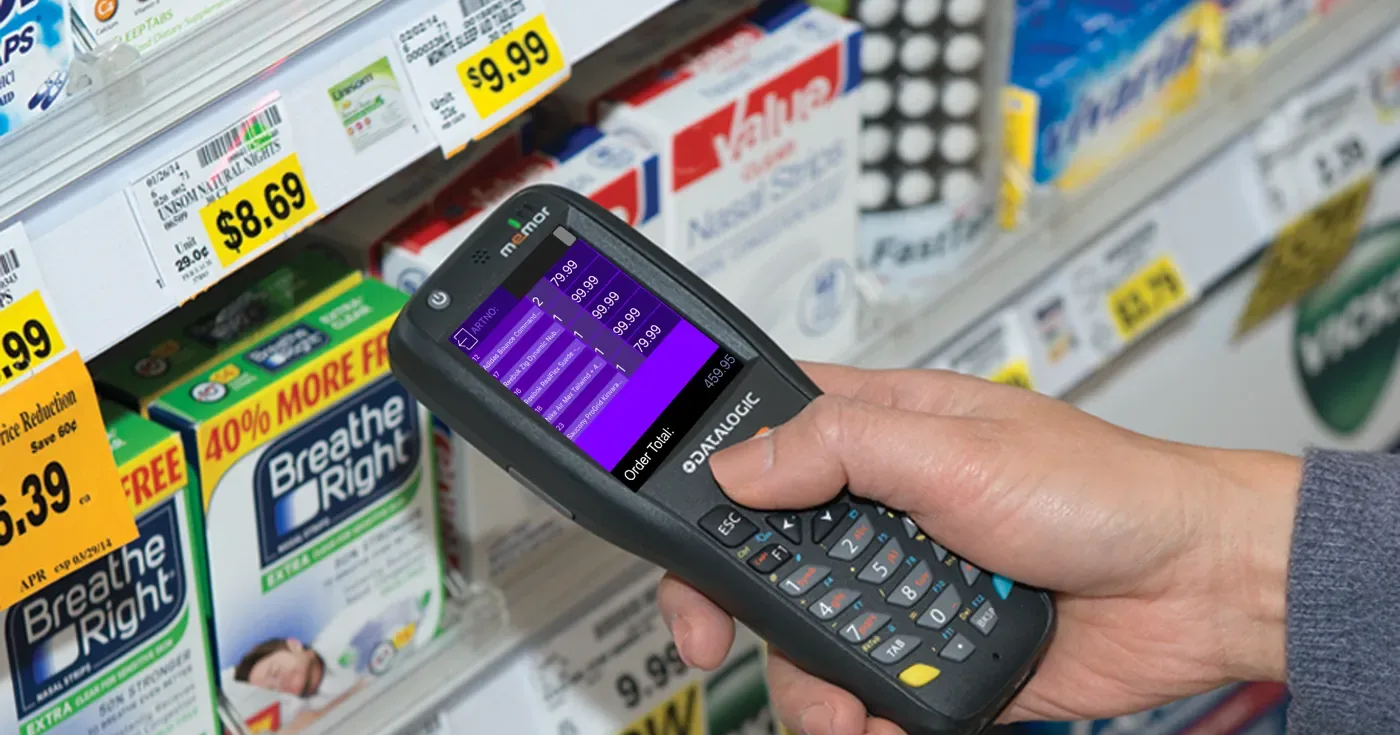
Write down where the label will be used and who will read it. A shelf label is read by a customer at arm's length and scanned by staff during counts. A box label is read across a warehouse and scanned at receiving and putaway. A shipping label is read by a carrier's systems, often on a conveyor.
For each label, answer three questions. What does a person need to read at a glance? What does a scanner need to read? What happens if the label is wrong? The answers decide the font size, the barcode type and how much effort goes into testing.
Keep one template per job. A single "general" label that tries to serve the shelf, the box and the parcel usually ends up serving none of them well.
List the data the label needs
Every label is a small report. Make a list of the fields it shows, such as item name, price, item number, barcode value, shelf location, batch number, order number or delivery address. Then note where each value comes from: your item register, the order, the receipt or the visitor record.
Pull the values from one source instead of typing them onto the label. A price typed by hand on a template is a price that will be out of date after the next campaign. When the template reads the field from your data, the label stays in step with the system.
Check long values early. Item names, addresses and variant descriptions are often longer than the space you have. Decide whether to shrink the text, wrap it onto two lines or shorten the field in the source data. Test with your longest real item name, not the neat example in the design tool.
Choose the barcode on purpose
Pick the barcode type based on what will scan it. If customers or other companies scan the code, use the type they expect, such as the product's existing EAN on retail goods. If a carrier scans the label, follow the carrier's label requirements. For your own internal use, a linear barcode or a QR code can both work; QR codes hold more data in a small square, while linear codes are familiar to every handheld scanner.
Decide exactly what value the barcode holds. A location label might hold the location ID, a box label might hold an internal license plate number, and a shelf label might hold the item's EAN. Write the rule down so the next template follows it too.
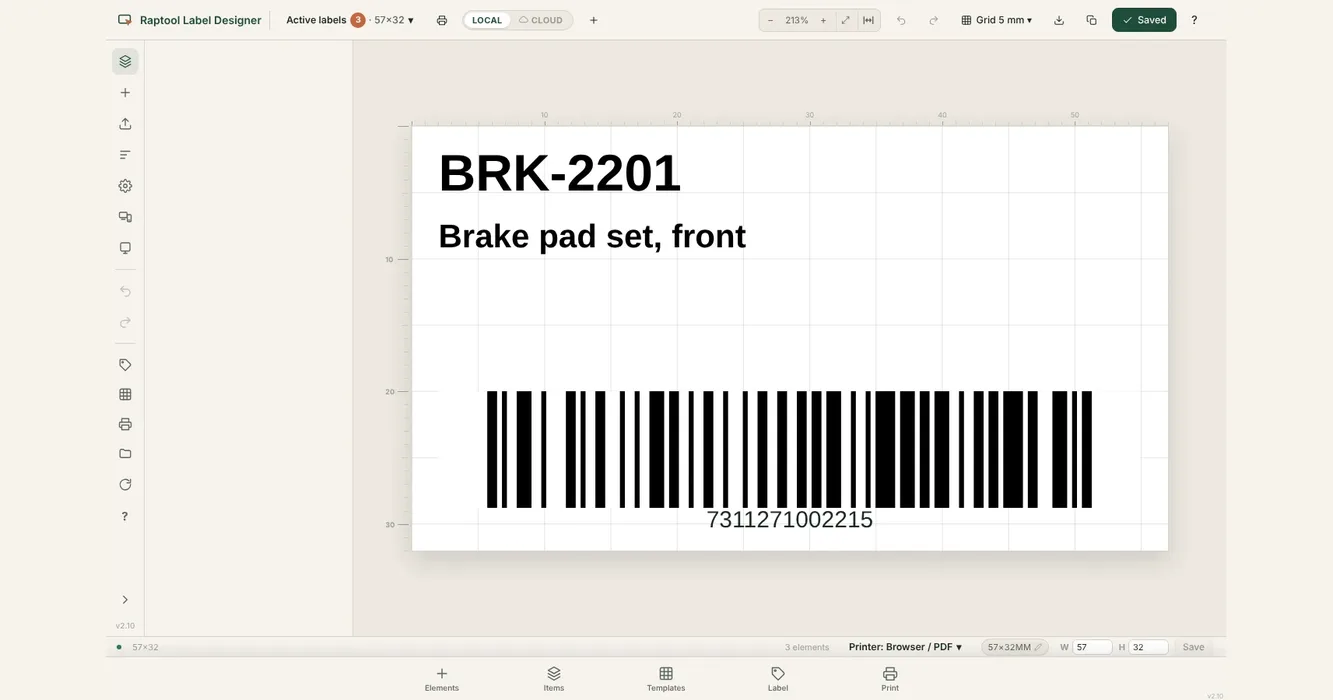
Give the barcode room. Leave clear space around it, keep it away from the label edge and avoid placing it where the label will fold around a corner. Print the human-readable number under linear codes so staff can type it in if a code is damaged.
Fit the template to the printer and the media
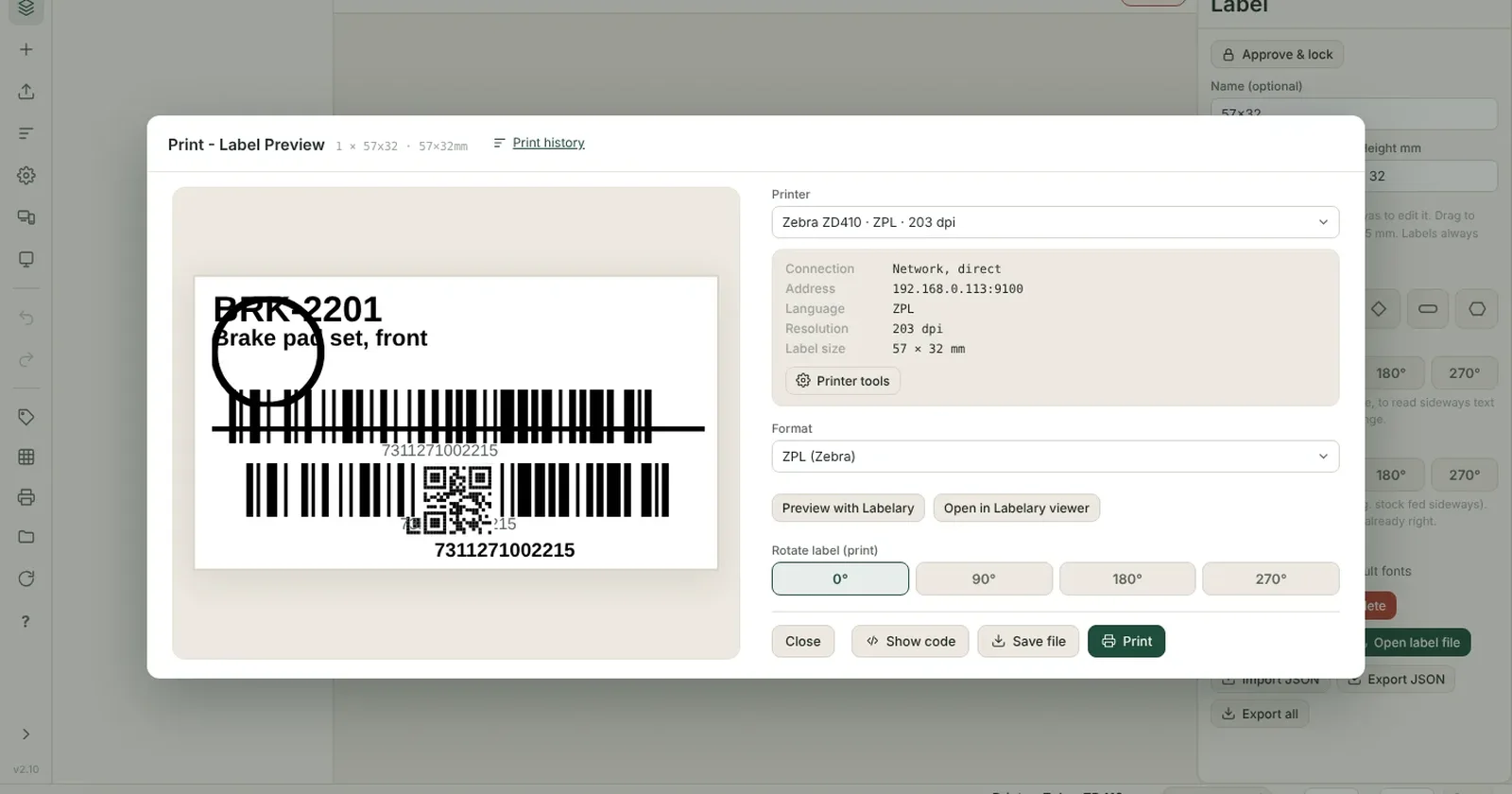
Design the template at the real size of the label stock you use, and set the printer, media and orientation before you place any text. A template built at the wrong size will scale when printed, and scaled barcodes are a common reason for failed scans.
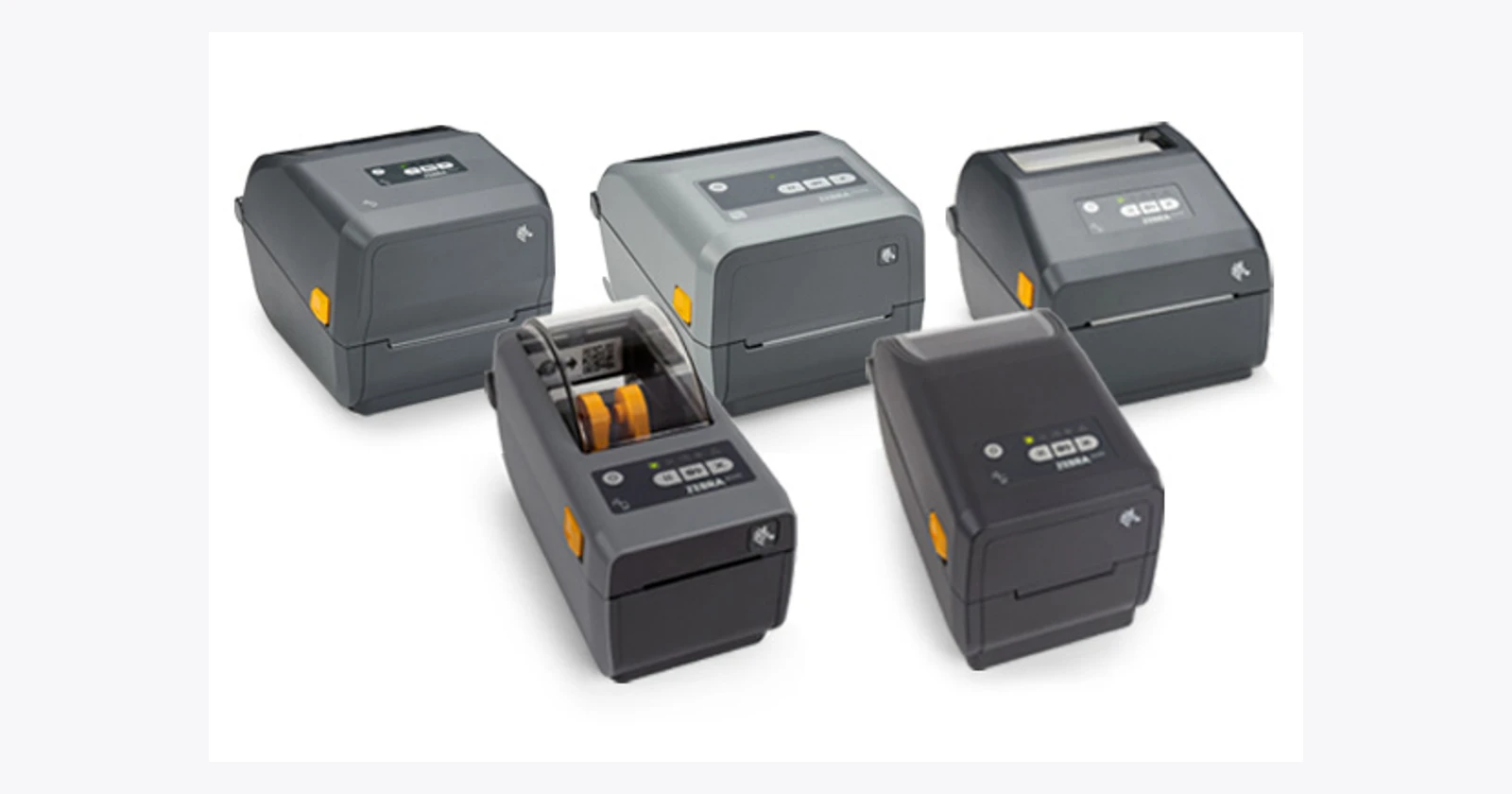
Ask your hardware partner which print method and media suit the job. Labels for a freezer, an outdoor yard or a long shelf life may need different stock from labels that are thrown away the same day. Desktop printers often suit a store back office, while busy warehouse stations may need industrial printers.
If more than one printer prints the same template, test it on each one. Two printers with different resolution or calibration can turn the same design into two slightly different labels.
Test the label before it goes live
A quick test print on the real printer and real stock catches most problems. Use this checklist before you publish a new template or change an old one.
| Test | What to check | Who checks |
|---|---|---|
| Longest values | The longest item name, address and price fit without being cut off | Template owner |
| Readability | Key text can be read at the distance where people use the label | A user from the floor |
| Scan back | Every barcode scans in the app that will use it, with the scanners you own | Warehouse or store lead |
| Barcode value | The scanned value matches the item, location or order it should | Template owner |
| Every printer | The label prints the same on each printer that will use the template | IT or super user |
| Real conditions | The label sticks and stays readable on the real surface, temperature and handling | Process owner |
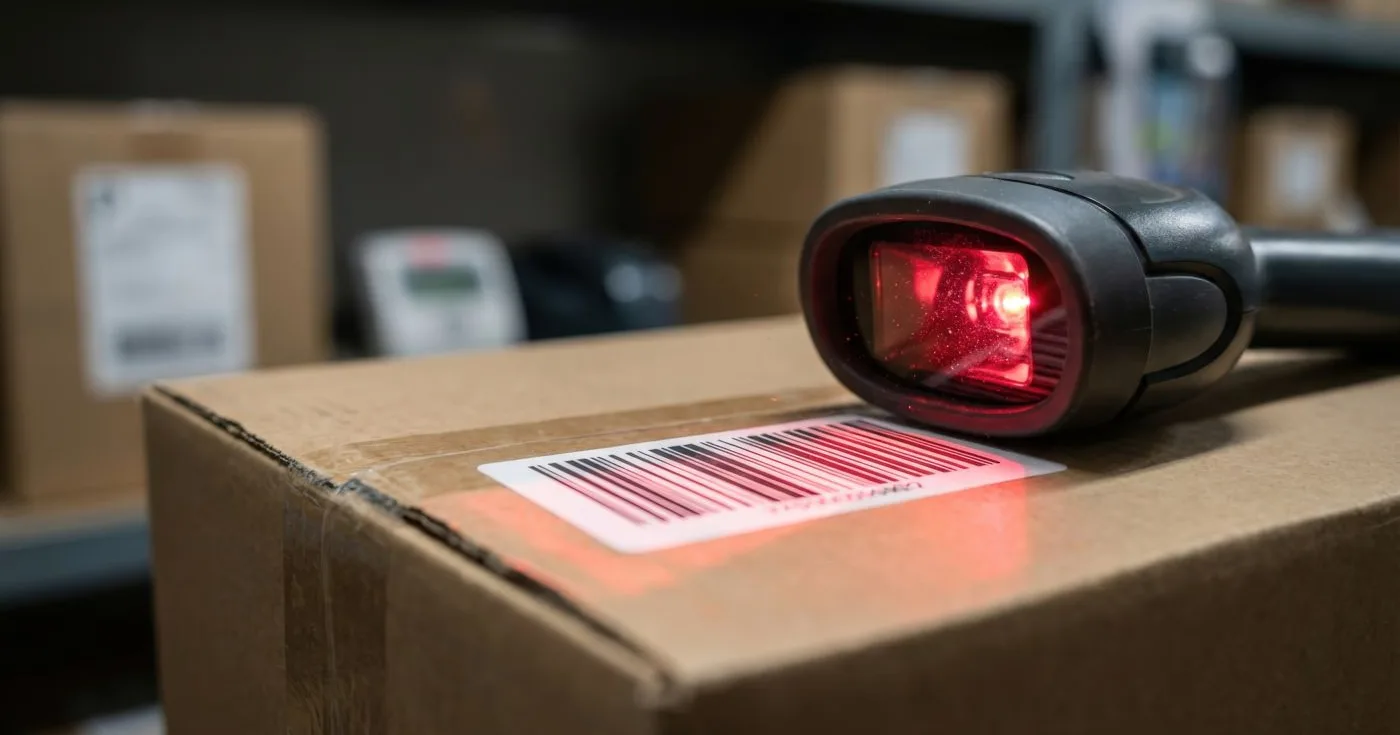
The scan-back test is the one most often skipped. A barcode can look perfect on paper and still return the wrong value. Scan it with the same app and device your team will use, and check that the app finds the right item.
Decide who prints, where and when
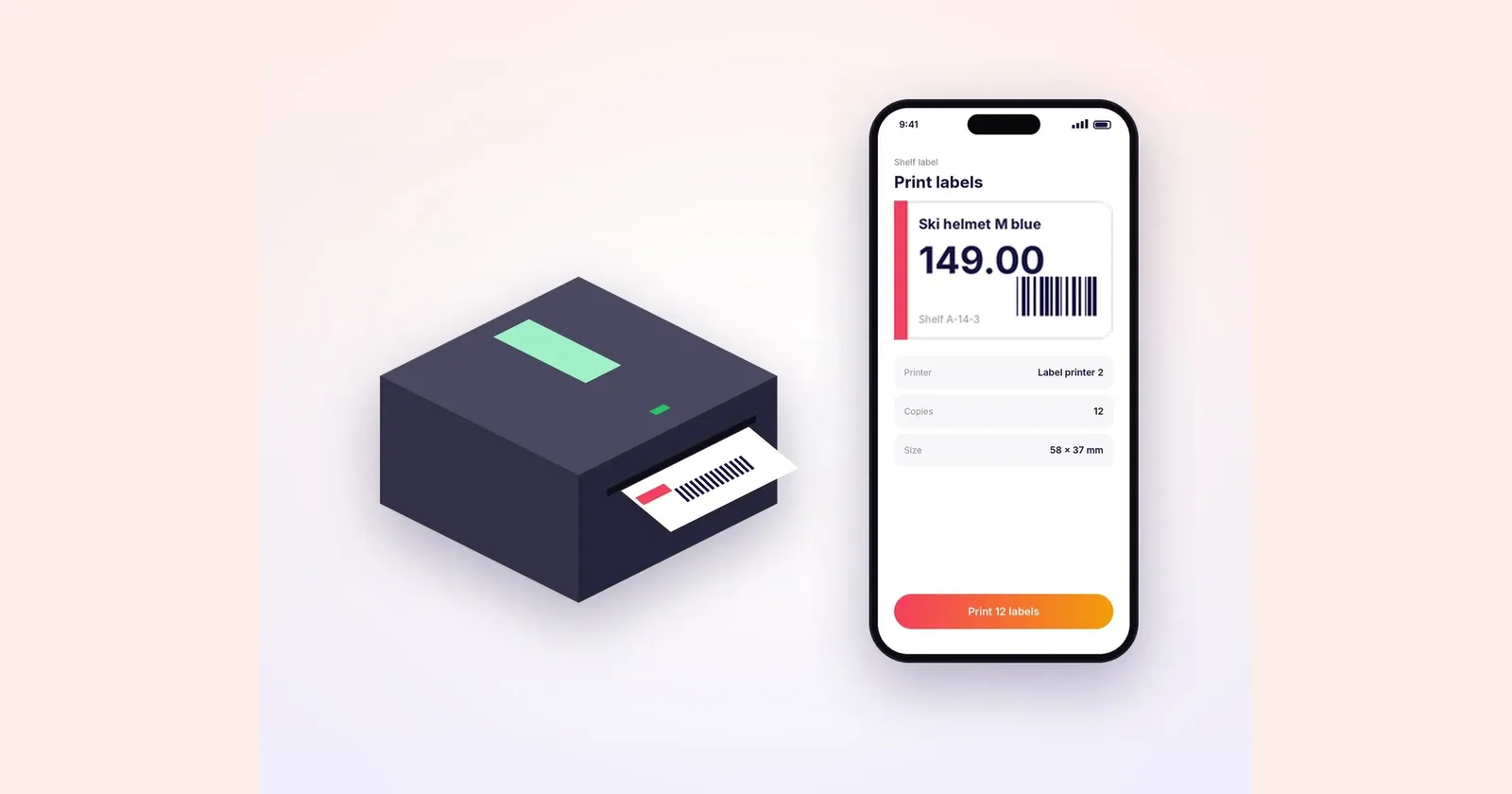
Some labels are printed by a person at the moment of need: a shelf label after a price change, or a box label when goods arrive. Others should print without anyone pressing a button, for example a shipping label when an order is marked as packed.
For manual printing, put the print action in the app where the work happens, so staff do not walk to a PC and retype data. Decide which printer each station uses by default and how staff pick another printer if the usual one is out of labels.
For automatic printing, agree on the trigger and the target printer for each label type. Keep a log of what was printed and when, so a missing label can be traced and reprinted instead of guessed.
Keep templates under control
Name every template clearly, with the label type and size, and give each one an owner. When someone changes a template, test it again with the checklist above before it is used on the floor. A small layout change can move a barcode into the edge or push a price off the label.
Review templates when something around them changes: new label stock, a new printer model, a new carrier, a new item range with longer names, or a new price format for campaigns. These are the moments when old templates quietly break.
How Raptool fits
Raptool Label Designer lets you design labels visually, with drag and drop text, images, barcodes, QR codes and data fields, without code. Fields fill in from your articles, orders, visitors or parcels, and labels print from phones, tablets, handhelds and PCs to any label printer, including network printers. Users can change the IP address and port of a network printer themselves in the app.
Labels can be printed from the Raptool apps your team already uses, such as Raptool WMS and Raptool Retail, and every printed barcode can be scanned back into those apps. Staff can also check cost, price and margin in the app before printing a discount label. For printing without clicks, Label Automator is a print server that prints on command, sends each job to the right printer and keeps a print log. Both are part of the Raptool App Tool Suite.
Raptool does not sell label printers or media. Your hardware partner can help you choose printers and label stock for each job.
FAQ
What should a label template include?
It should include only the fields the reader and the scanner need for that job, such as item name, price, location or order number, and a barcode with a clearly defined value. Pull each value from your system instead of typing it on the template.
Should I use a QR code or a linear barcode?
Use the type the scanning party expects: the product's EAN for retail goods and the carrier's required format for shipping labels. For internal labels, both work; QR codes fit more data in a small space, while linear codes suit any handheld scanner.
Why does my barcode print but not scan?
Common causes are a template built at the wrong label size so the barcode is scaled, too little clear space around the code, or a value that does not match what the app expects. Test print on the real stock and scan it back with your own app and device.
Can staff print labels from a phone or handheld?
Yes. Raptool Label Designer templates can be printed from phones, tablets, handhelds and PCs running Raptool apps, to any label printer including network printers.
Can labels print automatically?
Yes. Raptool Label Automator is a print server that prints on command, sends each job to the right printer and keeps a log of every label, so labels can print when an order is packed or goods are received.
Tags
Want to see how this could work in your business? Book a demo and we will walk you through it.
Book a demo