
A shelf-label task is finished when the right information is in the right place and the store has checked the result. Printing a batch is only one step. Product identification, price approval, timing, placement, and exception handling all need an owner.
For a small or mid-size retailer, start with one repeatable routine that covers ordinary price changes and damaged-label replacement. The recommendations here are operating suggestions. Adapt them to your own pricing policy, products, systems, and store procedures.
Define the task before choosing a printer
Separate a replacement label from a price change. Replacing a torn label may simply reproduce approved information, while changing a price requires a decision about the new value and when it takes effect. Staff should know which task they are performing.
Include promotional labels and product labels in the discussion. They may use different templates or approval steps. Decide which jobs can be completed during a normal shelf walk and which should be prepared as a planned batch.
Write down the completion rule. It might include reviewing the product, checking the approved price, printing, placing the label, and verifying the shelf. A clear rule helps a supervisor understand what remains when the next shift takes over.
Identify the exact product and variant
Start from a product identifier rather than a description alone. Similar packaging can make variants difficult to distinguish, especially when different sizes or pack quantities sit together. Ask staff to compare the product record with the goods at the label position.
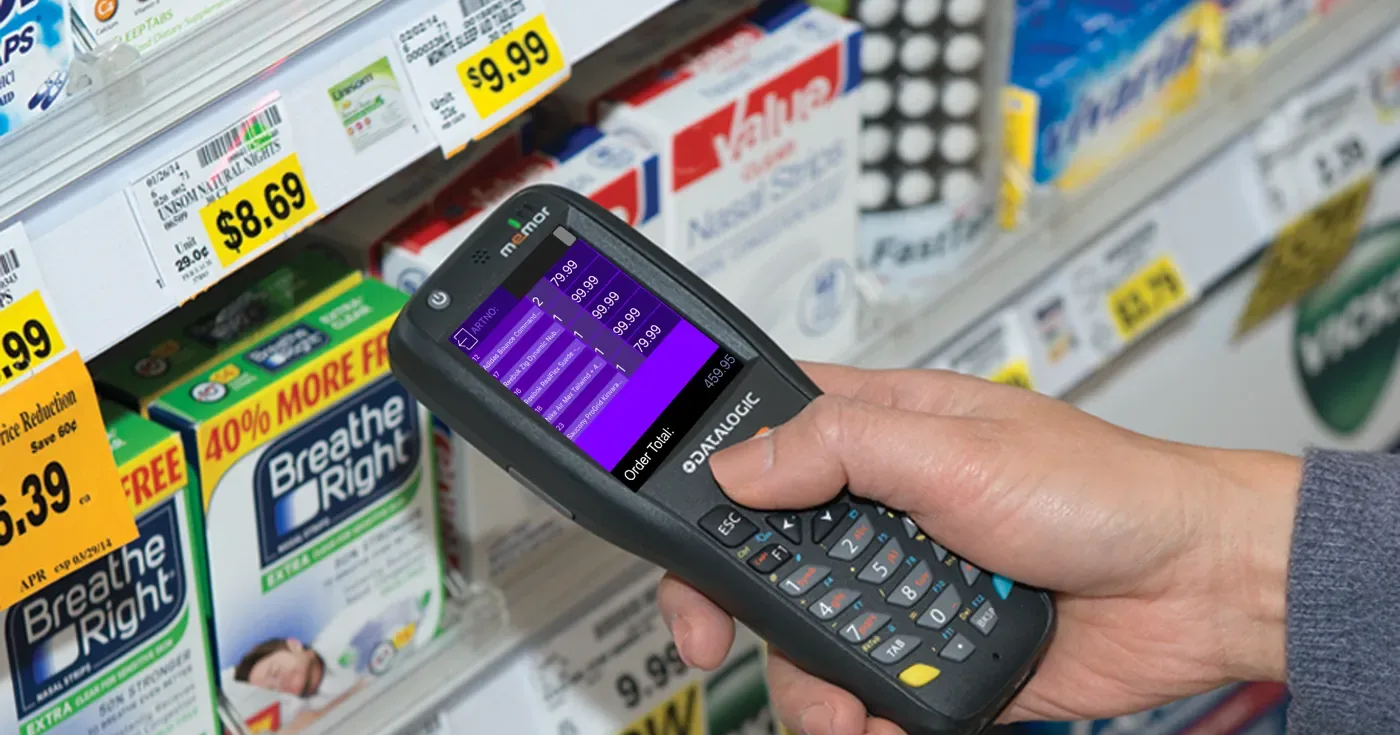
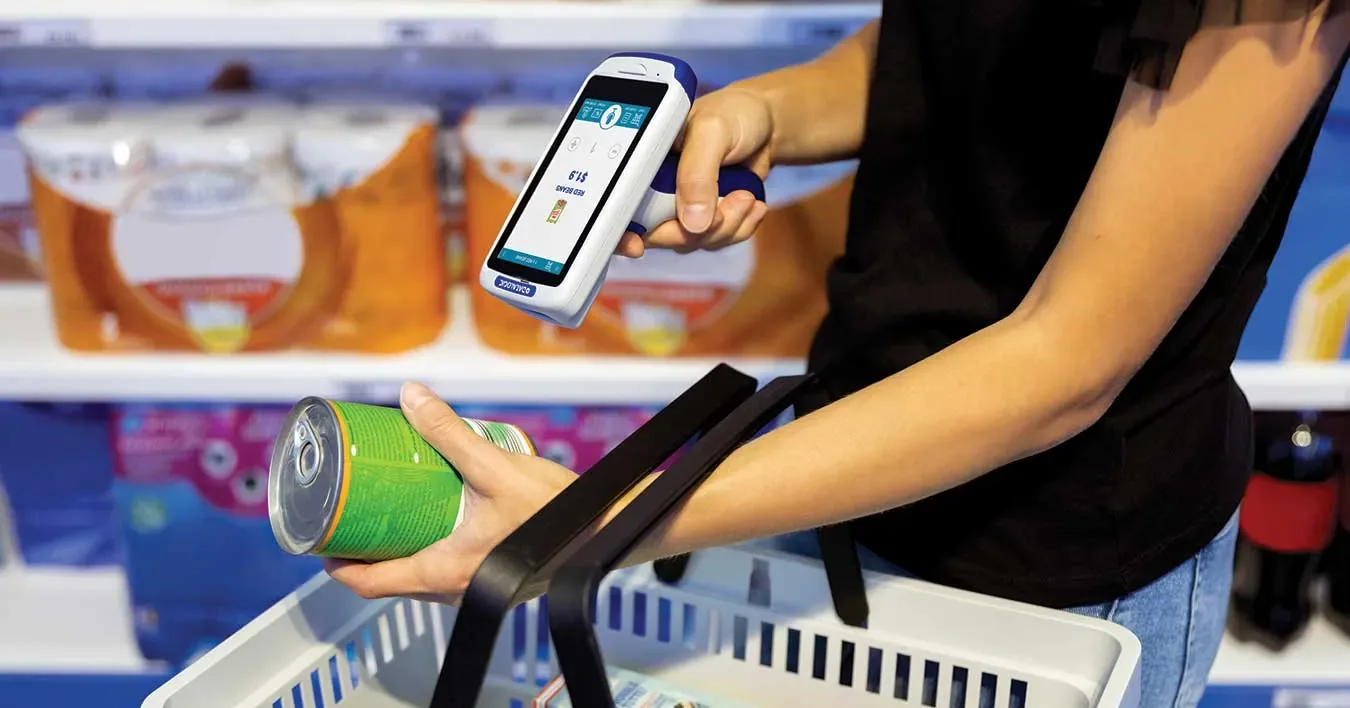
If scanning is part of your process, test both ordinary labels and damaged barcodes. Decide how staff search for a product when a code cannot be read. A manual fallback should still lead to the same identity check before printing.
Confirm which barcode belongs on the output. A shelf label, a product label, and an outer-carton label can serve different purposes. Do not copy an identifier between templates simply because it is available in the item record.
Check price ownership and effective timing
Agree which system or person owns the approved selling price. Show staff where they should look when a printed label, the mobile app, and the checkout appear to disagree. Assign a clear escalation path instead of asking employees to choose the value they consider most plausible.
For scheduled changes, define when the new price becomes active and when labels are placed. Test that timing in your actual POS and app setup. Printing a future price early requires a controlled holding procedure so labels do not reach the shelf at the wrong time.
Treat a discount decision separately from its printed result. Decide who can approve the discount and which cost or margin figures should inform the review. Confirm that the data shown to staff has the meaning your pricing owner expects.
Make printing predictable
Choose templates around the information each task requires. Check product identification, price presentation, and barcode readability on the actual label stock. Review a printed sample rather than judging the template only on a screen.
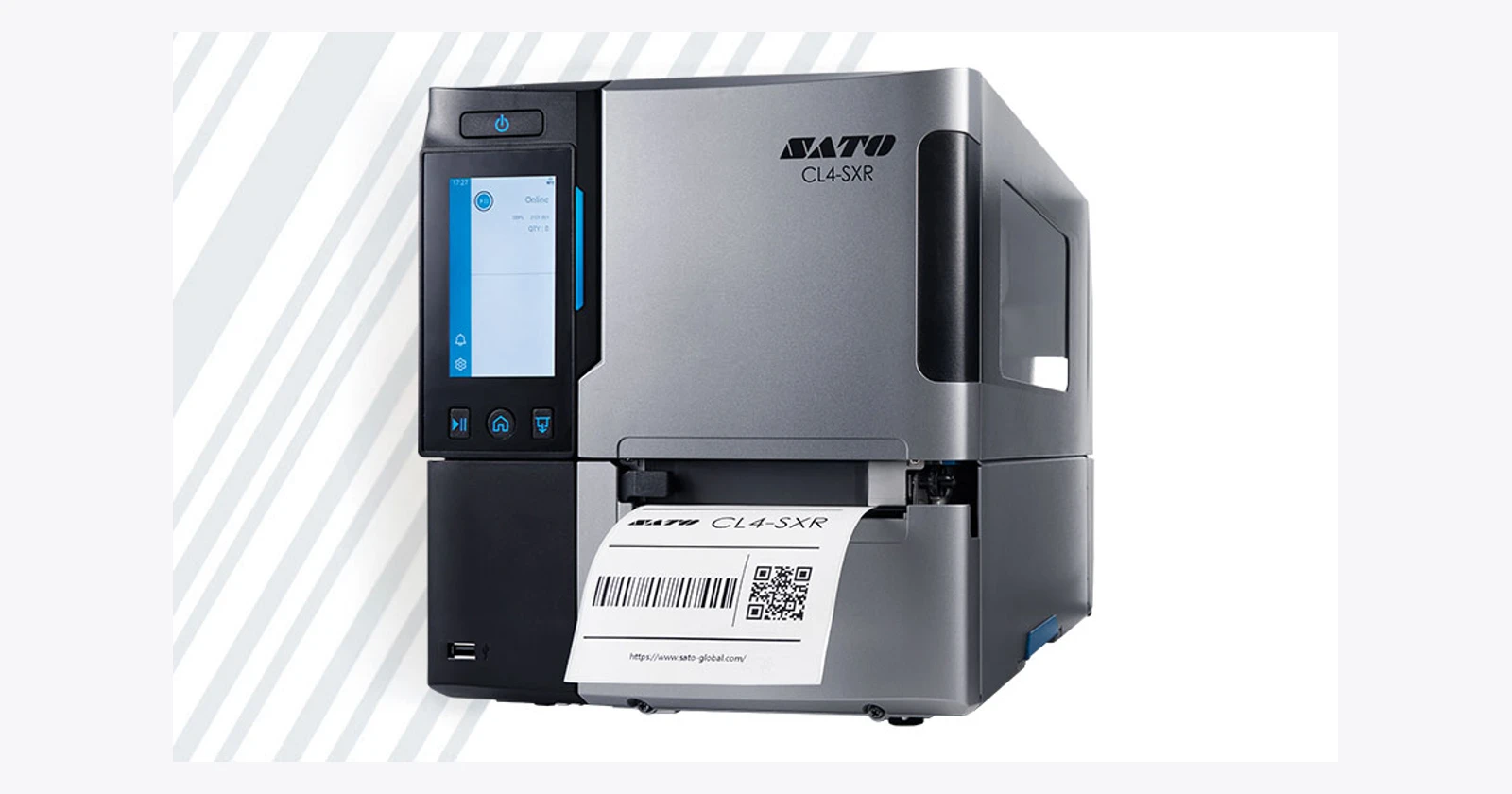
Test the selected printer, connection, and consumables during an ordinary shift. Include changing a roll and recovering from an interrupted job. Decide how staff identify the labels that printed successfully before sending the job again.
Compare printing near the shelf with printing at a fixed station. Consider carrying requirements, walking distance, batch organization, and where unused labels wait. Use a trial in the department to choose an arrangement instead of assuming one printer location fits every store.
Place labels and confirm the result
Keep each printed label connected to its task until it reaches the correct position. For a batch, choose a sequence that staff can follow without mixing labels from different departments. Remove the obsolete label as part of the same controlled task.
Check the product immediately beside the new label. Confirm the variant, the intended shelf position, and the information that was approved. If a promotion uses several displays, decide whether each position needs a separate placement confirmation.
Give unused and obsolete labels a clear destination. An old label left beside new output creates uncertainty for the next person. Record unresolved tasks so a supervisor can distinguish a completed price change from a label that is still waiting to be placed.
Use a short exception checklist
Agree what staff should do when a check fails. This table provides suggested checkpoints rather than guaranteed app controls. The useful outcome is an identified problem and a next action that the next shift can understand.
| Stage | Confirm | If the check fails |
|---|---|---|
| Identify | Correct product and variant | Resolve the product record |
| Review | Approved price and effective timing | Ask the pricing owner |
| Correct template and readable output | Correct setup and reprint | |
| Place | Correct shelf or product position | Resolve placement before finishing |
Pilot with everyday interruptions
Try an ordinary shelf-price change, a damaged label, similar product variants, and an interrupted print job. Include a task handed to another employee halfway through. Review both the physical shelf and the relevant system records at the end.
Ask a supervisor to inspect a small group of completed changes. Record the types of corrections required instead of measuring only how many labels printed. A wrong product, an outdated price, and a misplaced label require different process improvements.
Review repeated problems with the pricing and item-data owners. A clearer template can help with presentation, but it cannot resolve uncertainty about which record is authoritative. Fix the source of the issue before increasing batch size or rolling the routine across more departments.
How Raptool fits
Raptool Retail describes printing shelf, product, and discount labels from the app, with cost, price, and margin available before printing a discount price. The same page describes stock, price, and location information for store staff.
Build your demonstration around a real product and one of your existing labels. Ask to see identification, the price source, template selection, printing, and recovery after an interruption. Confirm the exact printer models and POS or ERP behavior in the proposed setup.
Review Raptool Label Designer for your template needs and device options for staff working on the floor. Raptool provides the software; its partners supply hardware. Choose the equipment after the team has tested the complete label routine.
FAQ
Can Raptool print shelf and discount labels?
Raptool Retail describes printing shelf, product, and discount labels from the app. Confirm the exact templates and printer setup you need.
Can staff check margin before printing a discount label?
The Raptool Retail page describes checking cost, price, and margin before printing a discount price. Confirm the source and meaning of those values in your setup.
Does printing a label update the checkout price?
Do not assume it does. Demonstrate how the proposed integration updates or reads POS prices and how the effective time is controlled.
Should we use a mobile or fixed printer?
Test the walking distance, batch size, label stock, and carrying requirements in your own store. Choose the arrangement that fits the verified workflow.
What should we do with obsolete labels?
Include removal and disposal in the store procedure. Keep obsolete labels separate from labels still waiting to be placed so staff do not reuse them accidentally.
Tags
Want to see how this could work in your stores? Book a demo and we will walk you through it.
Book a demo