Overview
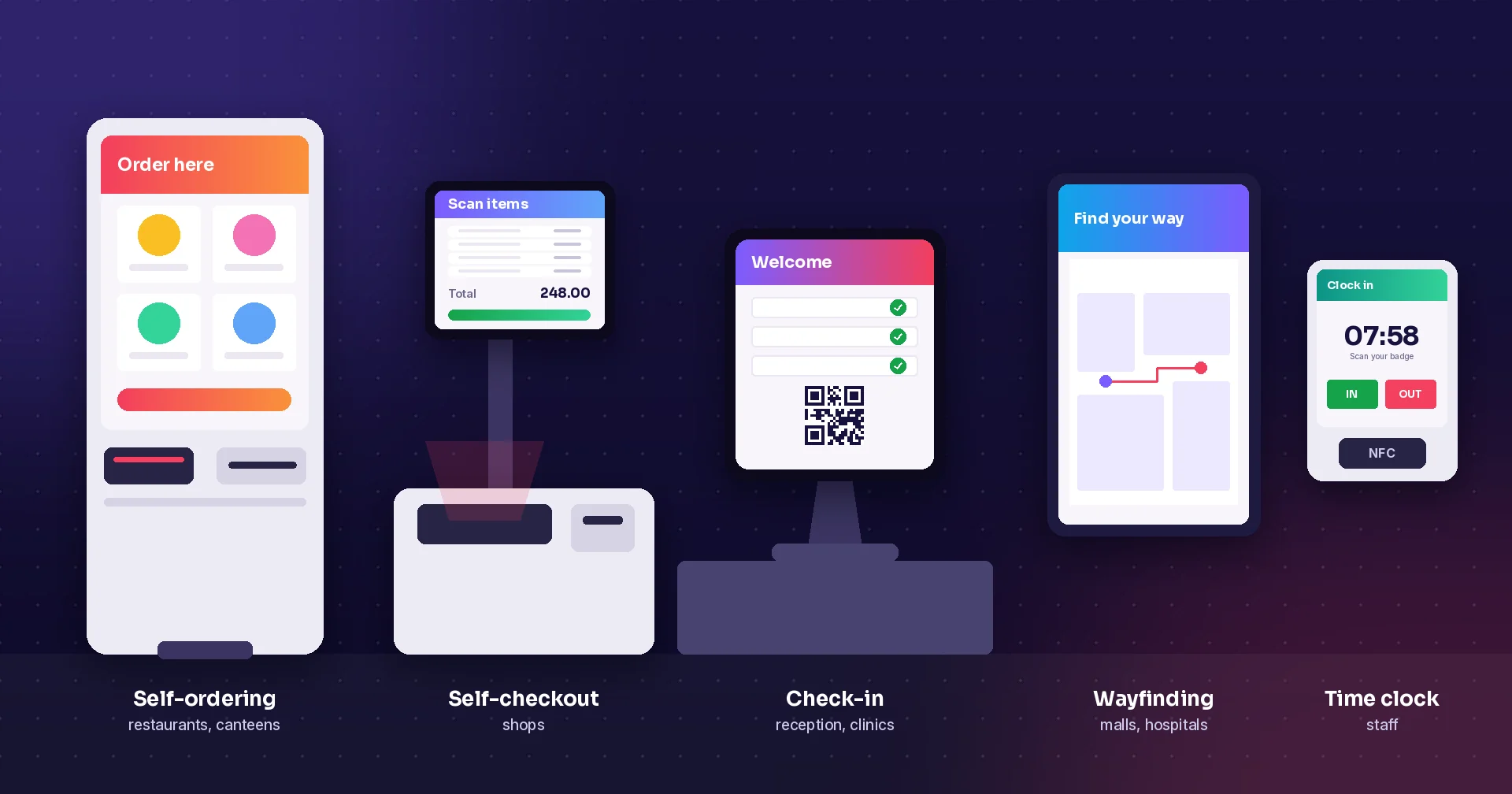
A kiosk is a screen that lets people help themselves: order food, check in, pay for parking, find their way or clock in for a shift. They all look alike from a distance, but they do very different jobs and need different hardware, software and planning. This post walks through the eight most common types of self-service kiosk, what each one is good for, and what to think about before you buy one.
Why self-service is everywhere
Kiosks are no longer a novelty. The Kiosk Association's 2025 market report puts the installed base at 13 to 16 million kiosks worldwide, with retail and quick-service restaurants making up roughly 60 percent of self-service spending. The reasons are simple: customers skip the queue, staff spend less time typing and more time helping, and the business gets clean data straight into its systems.
1. Self-ordering kiosks
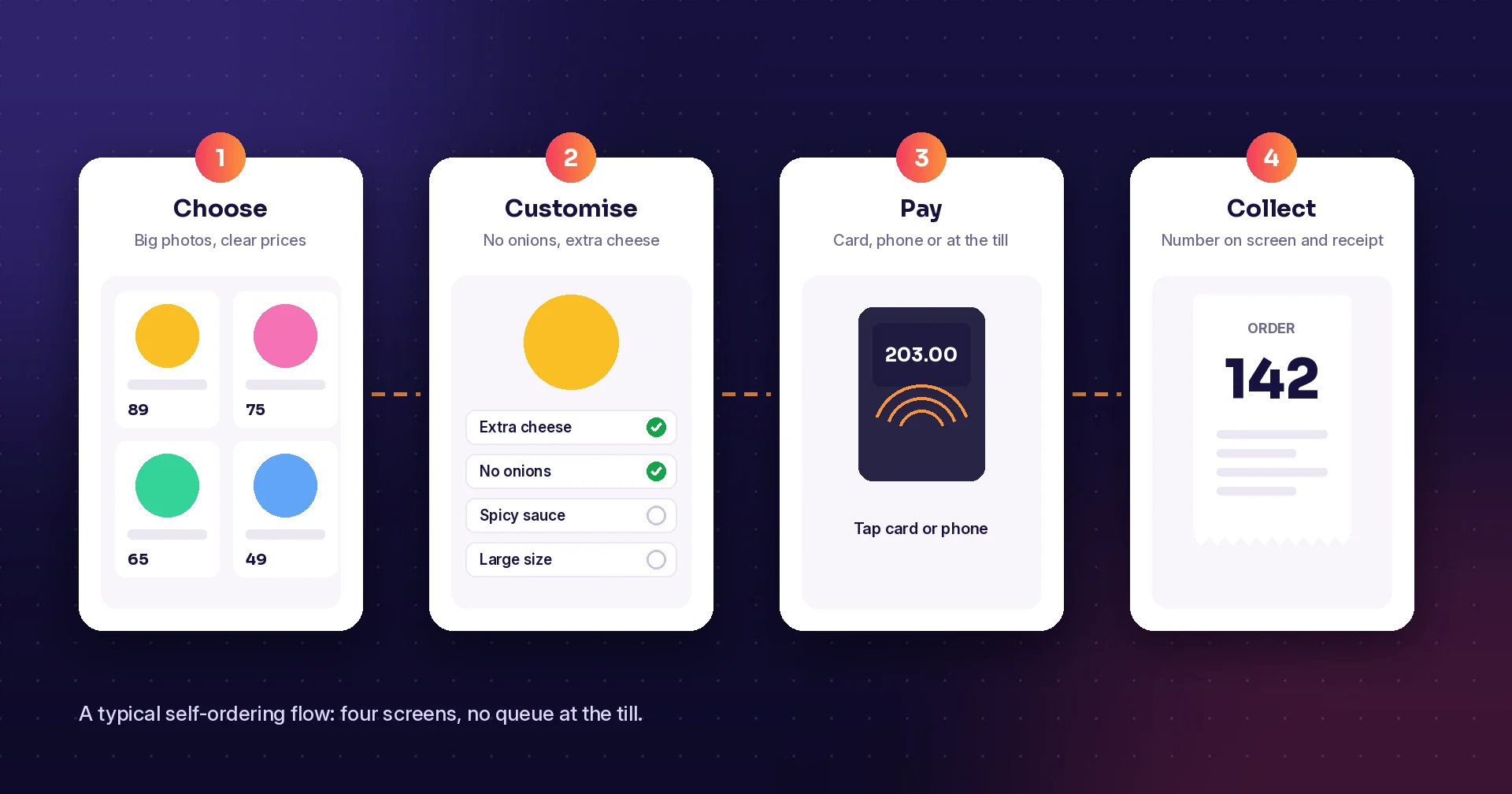
The kiosk most people know. Guests browse the menu, change their order, pay and get an order number. They are common in fast food, cafés, staff canteens and stadiums. Photos and suggested add-ons can lift the order value: in a case study published by its kiosk supplier, US chicken chain PDQ reported a 25 percent higher average ticket on kiosk orders. Plan for clear photos, allergy information and a fast path for people who just want a coffee.
2. Self-checkout kiosks
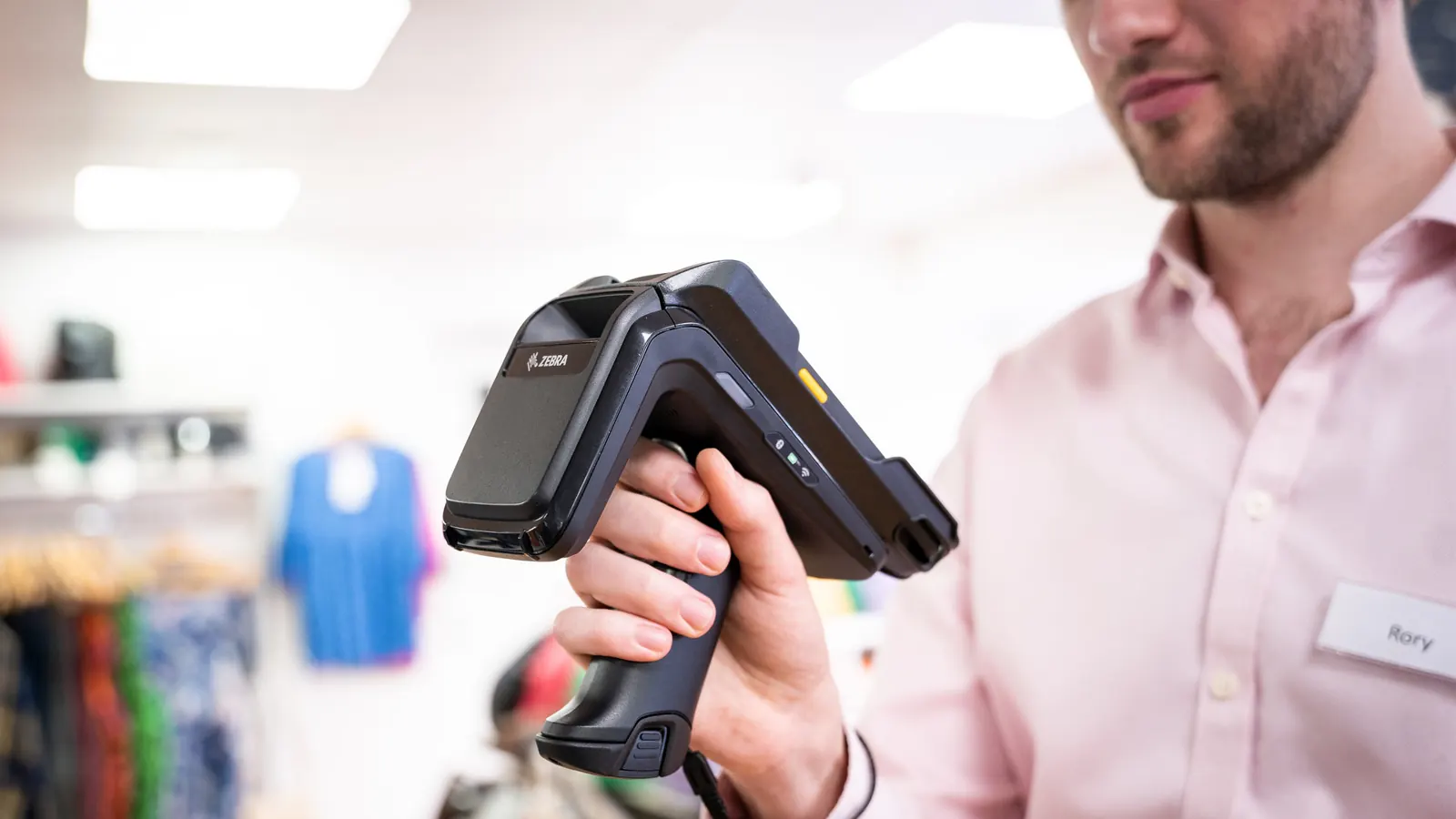
Shoppers scan their own items and pay. Self-checkout shortens queues in supermarkets, convenience stores and DIY shops, especially at busy times. It needs a good barcode scanner, a scale or bagging area in some shops, and staff nearby to help with age checks, missing barcodes and mistakes.
3. Check-in and registration kiosks
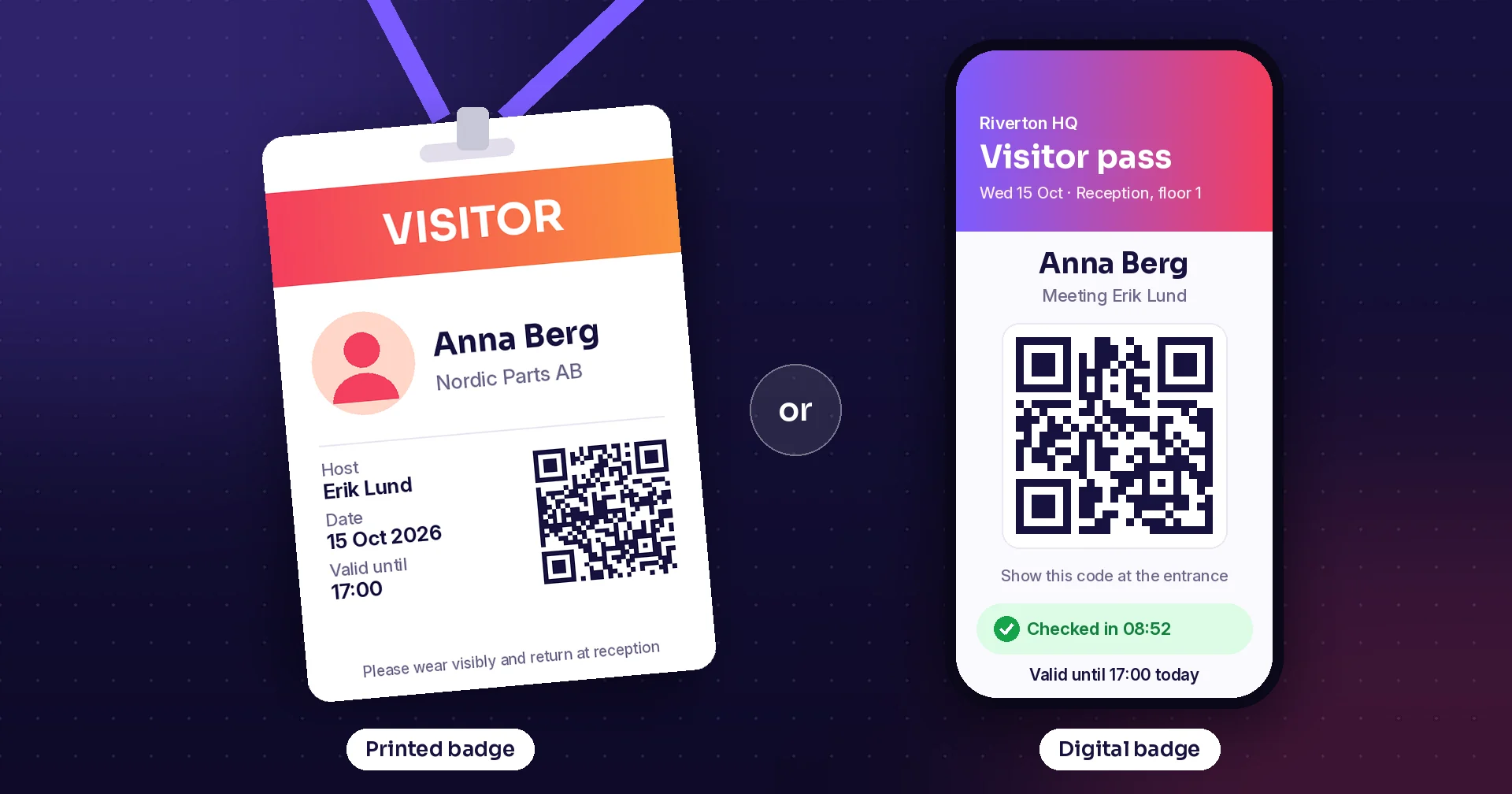
Visitors sign in at reception, guests check in at a hotel, patients register at a clinic, delegates collect their pass at an event. A check-in kiosk fills in the form, prints a badge or ticket and tells the right person that someone has arrived. Read more in our post on printed and digital visitor badges.
4. Ticketing and payment kiosks
Parking machines, public transport ticket machines, event box offices and bill payment terminals. The main job is to take a payment safely and hand over a ticket, receipt or QR code. These kiosks often stand outdoors or in busy halls, so they need strong enclosures, readable screens in daylight and a card terminal that works first time.
5. Information and wayfinding kiosks
Interactive maps and directories in shopping centres, hospitals, campuses, museums and large offices. Visitors search for a shop, a ward or a meeting room and get a route. The value is only as good as the data, so the kiosk must update itself when a shop moves or a room changes name.
6. Product lookup and endless-aisle kiosks
In-store screens where shoppers scan a barcode to check the price, see sizes and colours, or order an item that is not on the shelf for home delivery. They help small stores sell a bigger range and answer the question “do you have this in a medium?” without sending someone to the stockroom.
7. Pickup lockers
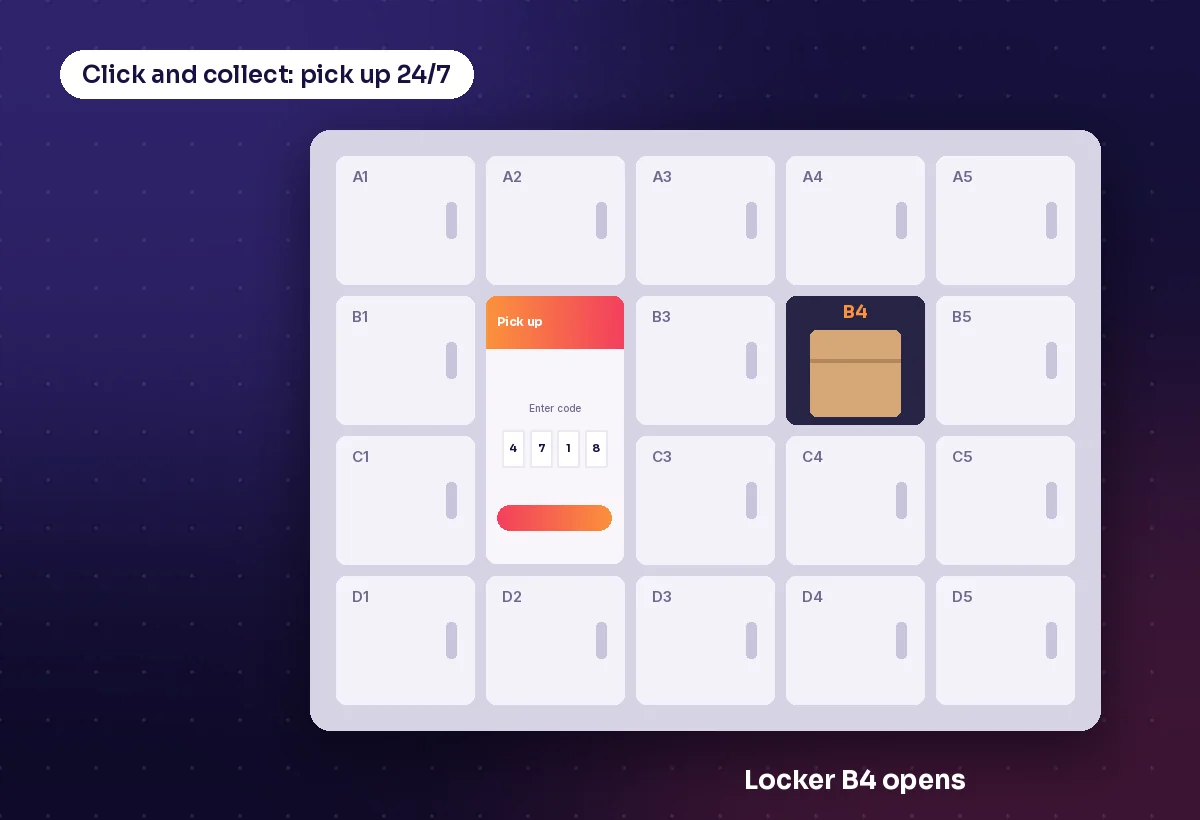
Click-and-collect lockers let customers pick up web orders, spare parts or returned equipment at any hour. The customer enters a code or scans a QR code and one door opens. Staff load the lockers once, and nobody needs to wait at a counter.
8. Staff kiosks
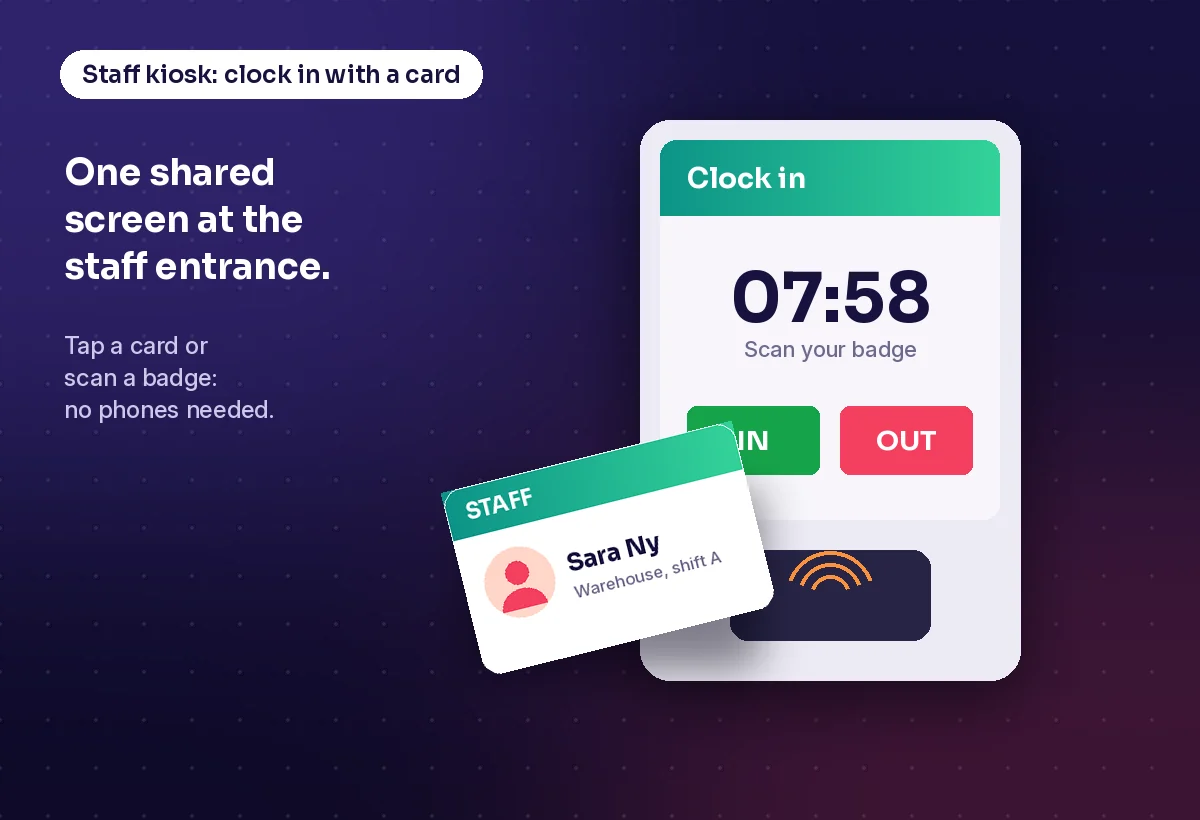
Not every kiosk faces customers. A shared screen at the staff entrance can be a time clock where people clock in with a card or badge. In a warehouse or factory, a kiosk can print labels, show the day's work, run check lists or let staff without a company phone see their schedule. These kiosks are often the quickest win, because the users are the same people every day.
Side by side
| Typical place | Main job | |
|---|---|---|
| Self-ordering | Restaurants, cafés, canteens, stadiums | Take orders and payments, print an order number |
| Self-checkout | Supermarkets and shops | Scan items and take payment |
| Check-in | Receptions, hotels, clinics, events | Register people, print badges or tickets, notify staff |
| Ticketing and payment | Parking, transport, venues | Sell tickets and take payments, often outdoors |
| Wayfinding | Malls, hospitals, campuses | Show maps, search and directions |
| Product lookup | Retail stores | Check price and stock, order items not on the shelf |
| Pickup lockers | Shops, offices, depots | Hand over orders at any hour |
| Staff kiosk | Warehouses, factories, staff entrances | Clock in, print labels, check lists |
What is inside a kiosk
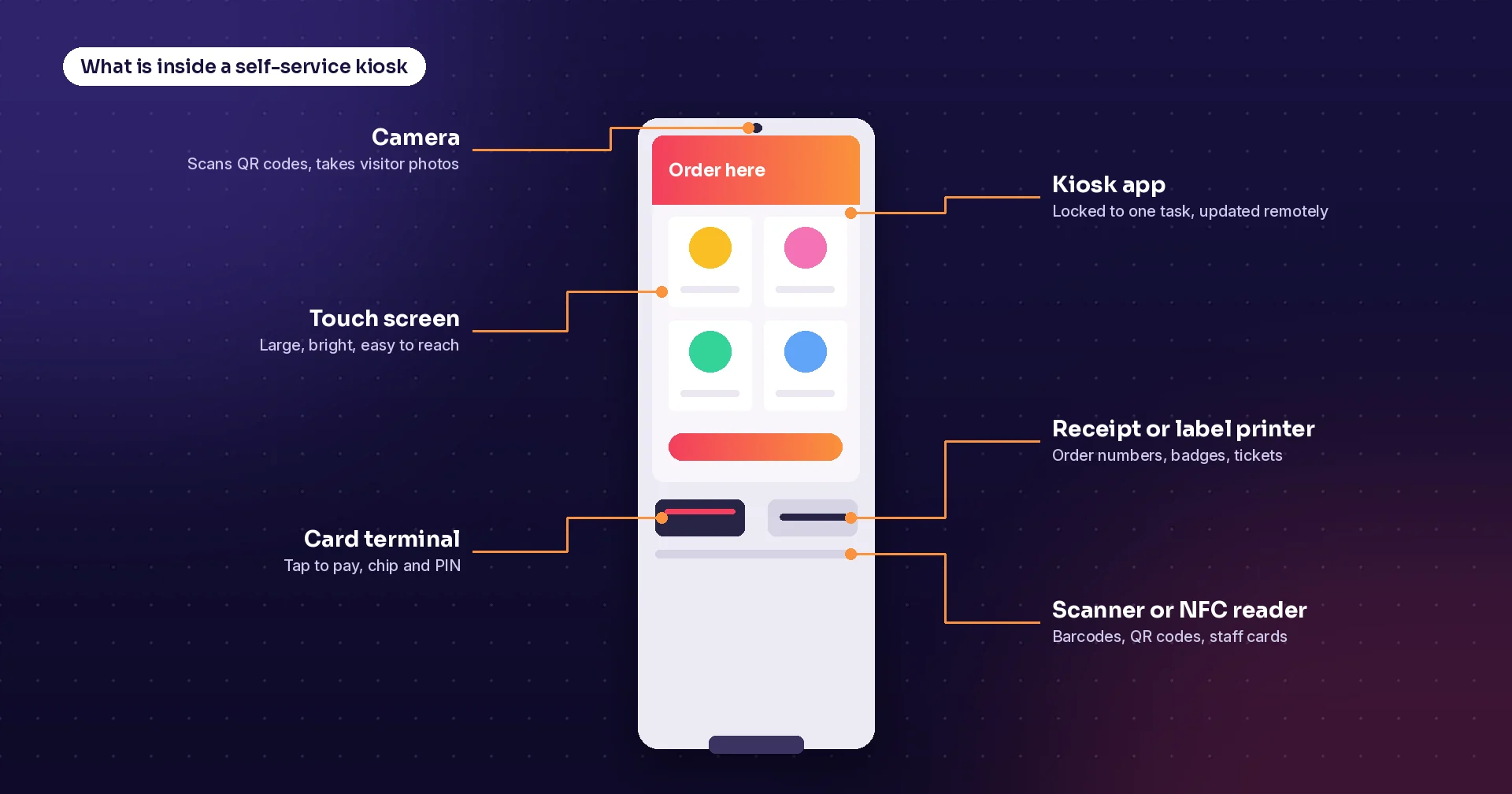
Most kiosks are built from the same parts. The enclosure can stand on the floor, hang on a wall, sit on a counter or be a simple tablet on a stand. Inside you find a touch screen and a computer, and then the add-ons the task needs: a card terminal for payments, a receipt or label printer for order numbers, badges and tickets, a barcode or QR scanner, an NFC reader for staff cards and a camera.
The software matters just as much. A good kiosk app locks the device to one task, starts again after a power cut, keeps working if the network drops, and can be updated remotely. Behind it, the kiosk must talk to the systems you already run, such as your ERP, booking system or access control.
Accessibility is now a legal requirement in the EU
Since 28 June 2025, the European Accessibility Act covers many self-service terminals, including ticketing machines, check-in machines, payment terminals and interactive information terminals linked to covered services. New kiosks must give information through more than one sense, for example screen and speech, offer text-to-speech with a headphone jack, let users adjust text size and contrast, and keep controls within reach from a seated position. Terminals already in use before that date may stay in service for up to 20 years. Even outside the EU, these rules are a good checklist for any kiosk.
How to get a kiosk project right
- Give each kiosk one main job and keep the flow to a few screens
- Always offer a way to get help from a person
- Make sure the kiosk keeps working, or fails gracefully, when the network drops
- Place it where people naturally stop, at a height everyone can reach
- Plan for cleaning, paper rolls and remote updates from day one
- Measure use and waiting times, and change the flow based on what you see
How Raptool helps
Raptool kiosk software turns a screen into a self-service point, from order kiosks to check-in and staff kiosks. Raptool apps run natively on Android, iOS, Windows and Mac, from phones and rugged handhelds to kiosks, and Raptool Client gives them full access to barcode scanners, cameras, RFID readers and label or receipt printers. Apps keep working offline and sync when the connection is back, and the Integration Server connects them to ERPs such as SAP, Microsoft Dynamics, Fortnox and Visma. Ready-made solutions cover visitor registration with badge printing and time and attendance, and you can design your own kiosk screens without code in Raptool Designer or describe the kiosk you need to the Raptool AI Development Framework.
Key takeaways
- Kiosks look alike but do very different jobs, so start from the task
- Self-ordering and self-checkout dominate, but staff kiosks are often the quickest win
- Hardware add-ons such as printers, scanners and card terminals follow from the task
- Software must lock the device, work offline and connect to your systems
- In the EU, new kiosks for covered services must meet accessibility rules
Frequently asked questions
What is a self-service kiosk?
A self-service kiosk is a touch screen, usually in a sturdy enclosure, that lets customers, visitors or staff complete a task on their own, such as ordering, checking in, paying or clocking in, without waiting for a person to help.
What are the main types of kiosk?
The most common types are self-ordering kiosks, self-checkout, check-in and registration kiosks, ticketing and payment kiosks, information and wayfinding kiosks, product lookup kiosks, pickup lockers and staff kiosks such as time clocks.
What hardware does a kiosk need?
At minimum a touch screen and a computer in an enclosure. Depending on the task you add a card terminal, a receipt or label printer, a barcode or QR scanner, an NFC reader for cards and a camera.
Do kiosks have to be accessible?
In the EU, the European Accessibility Act has applied since 28 June 2025 to many self-service terminals, including ticketing, check-in and payment terminals. They must support more than one sense, offer text-to-speech with a headphone jack and be usable from a seated position. Older terminals may stay in use for up to 20 years.
Can a tablet be used as a kiosk?
Yes. A tablet on a stand or wall mount is a common low-cost kiosk for check-in, feedback and staff tasks. Run the kiosk app in a locked mode so users cannot leave it, and add a printer or scanner if the task needs one.
Sources: Kiosk Association, 2025 market report; U.S. Chamber of Commerce, on PDQ's self-ordering kiosks (GRUBBRR case study); Directive (EU) 2019/882, the European Accessibility Act; “How EAA rules apply to self-service terminals”, Accessible.org.
Tags
Planning a kiosk for orders, check-in or staff? Book a demo and we will show you Raptool kiosk apps on real hardware.
Book a demo