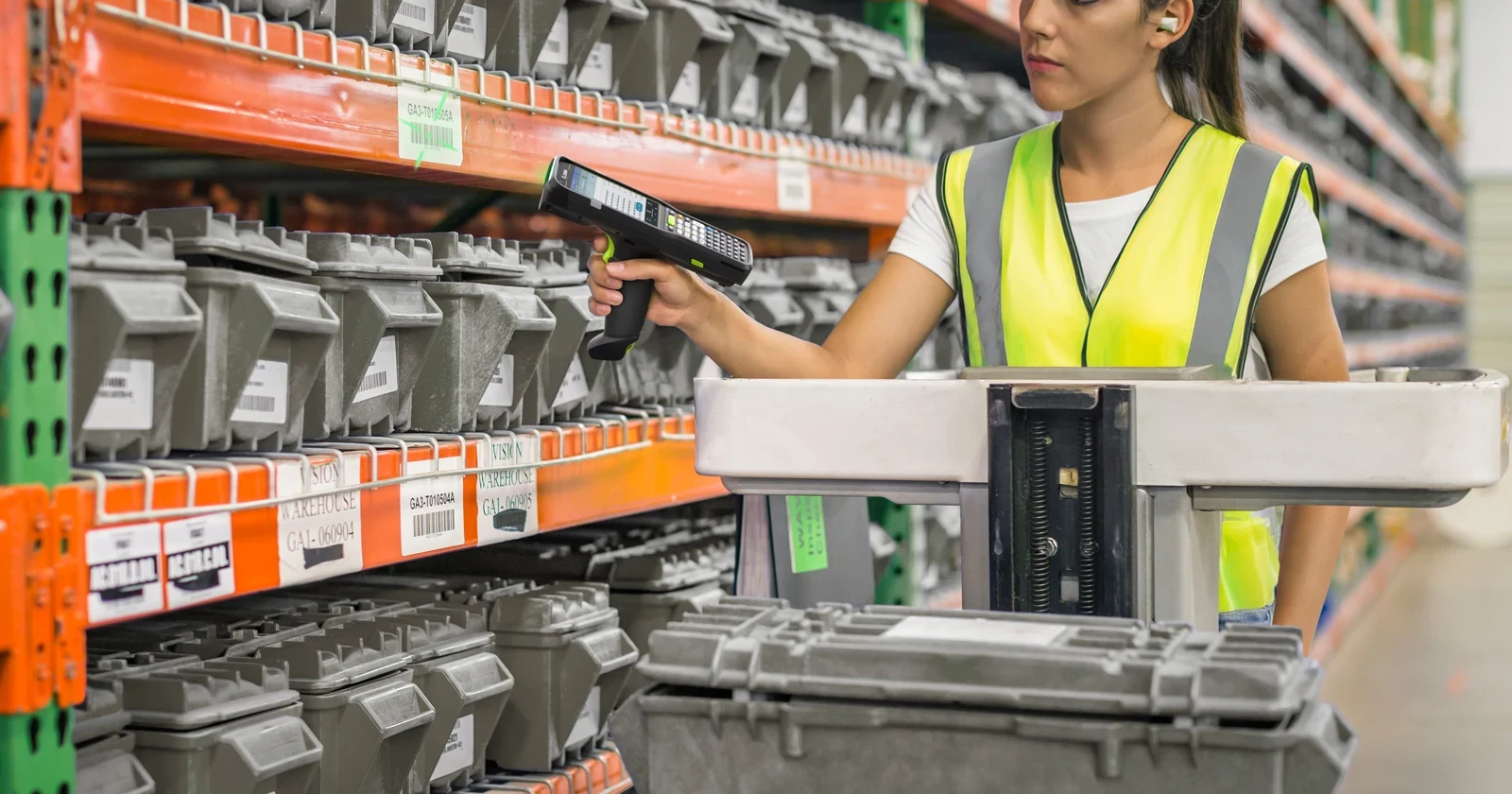
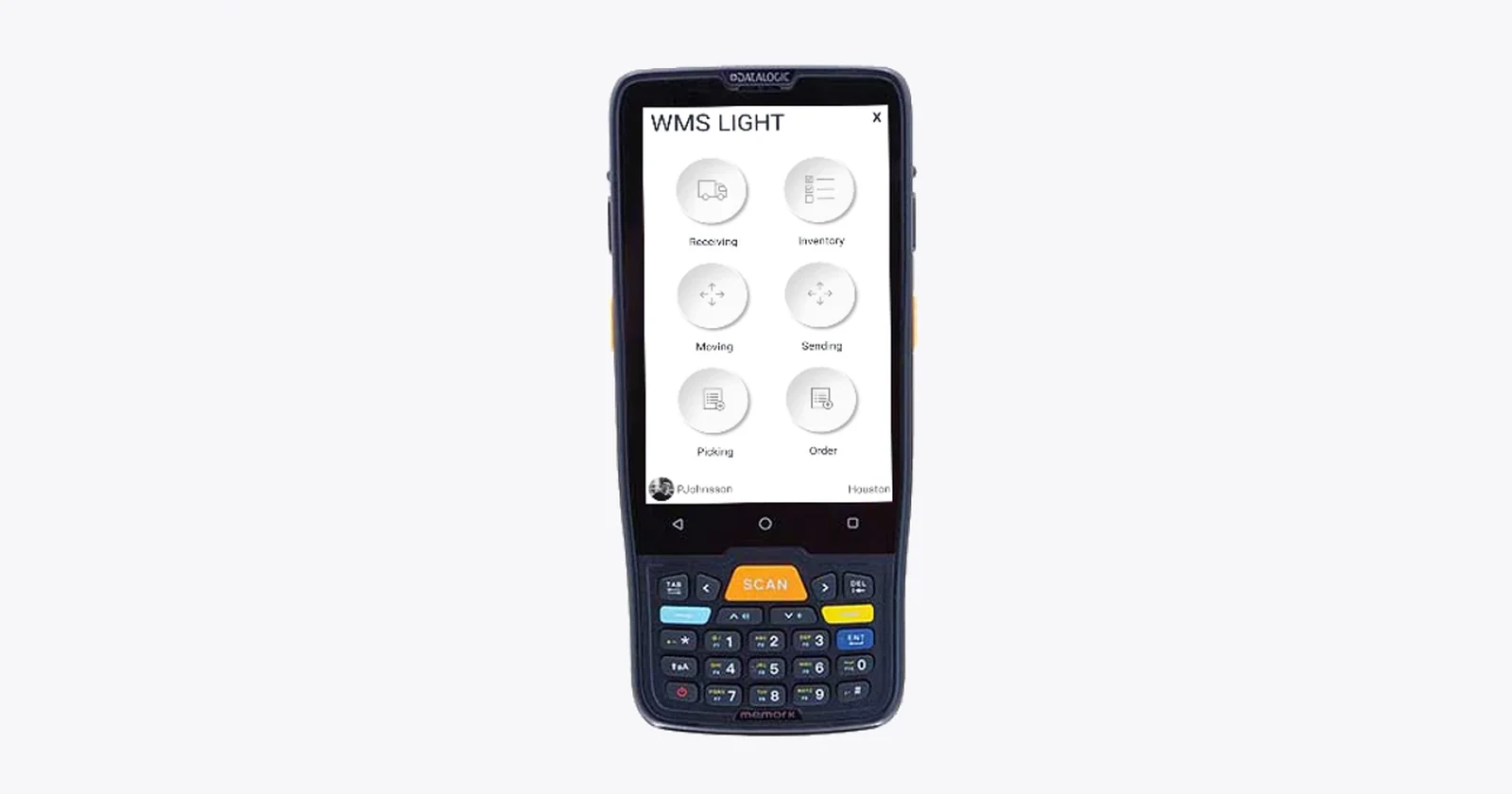
Count the stock once. Record it where you work.
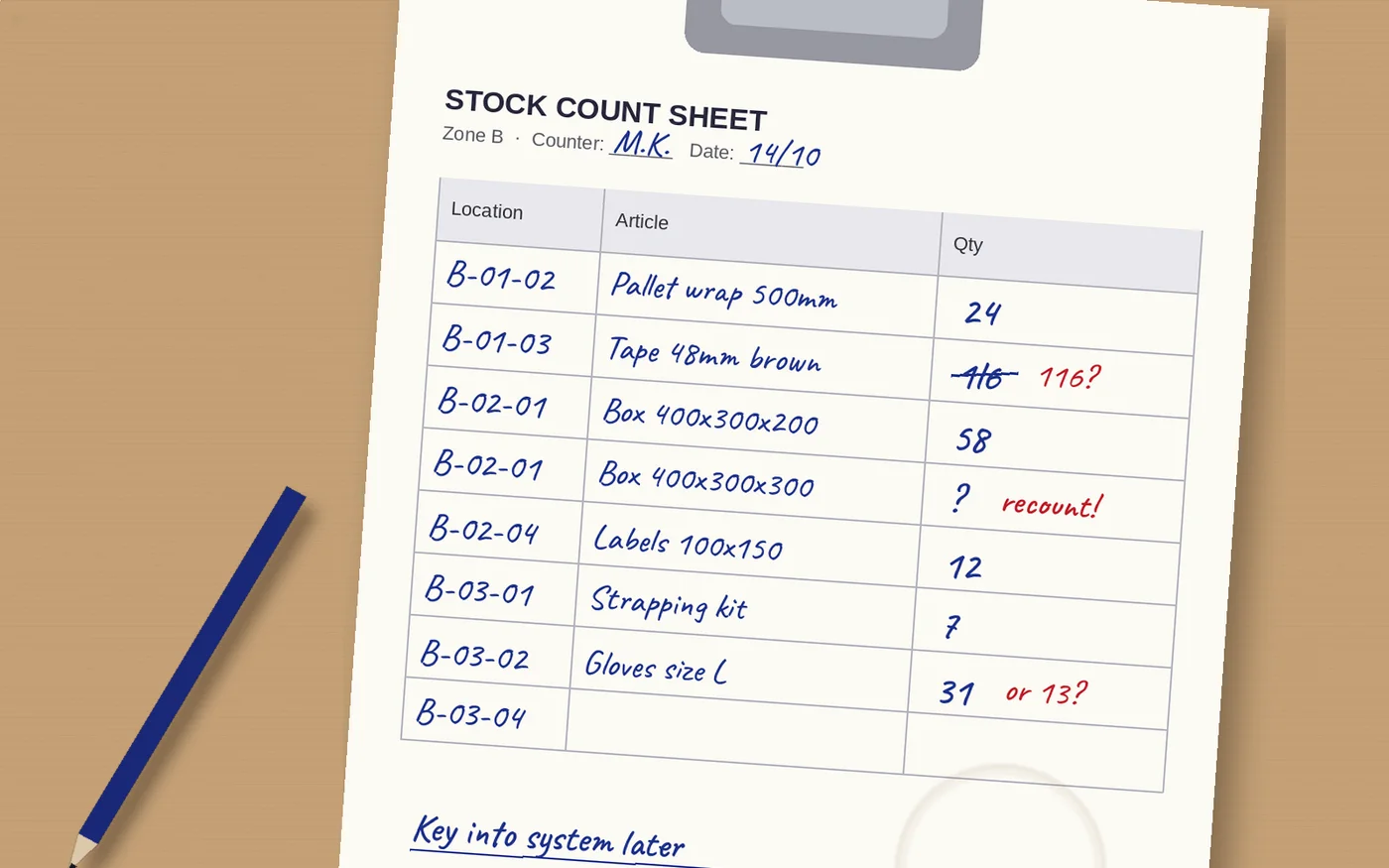
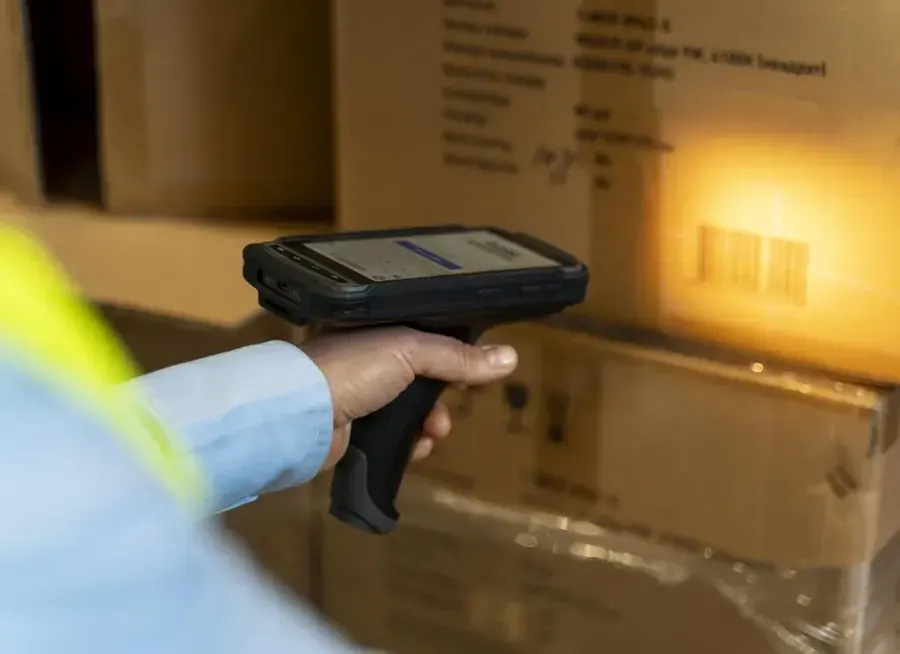
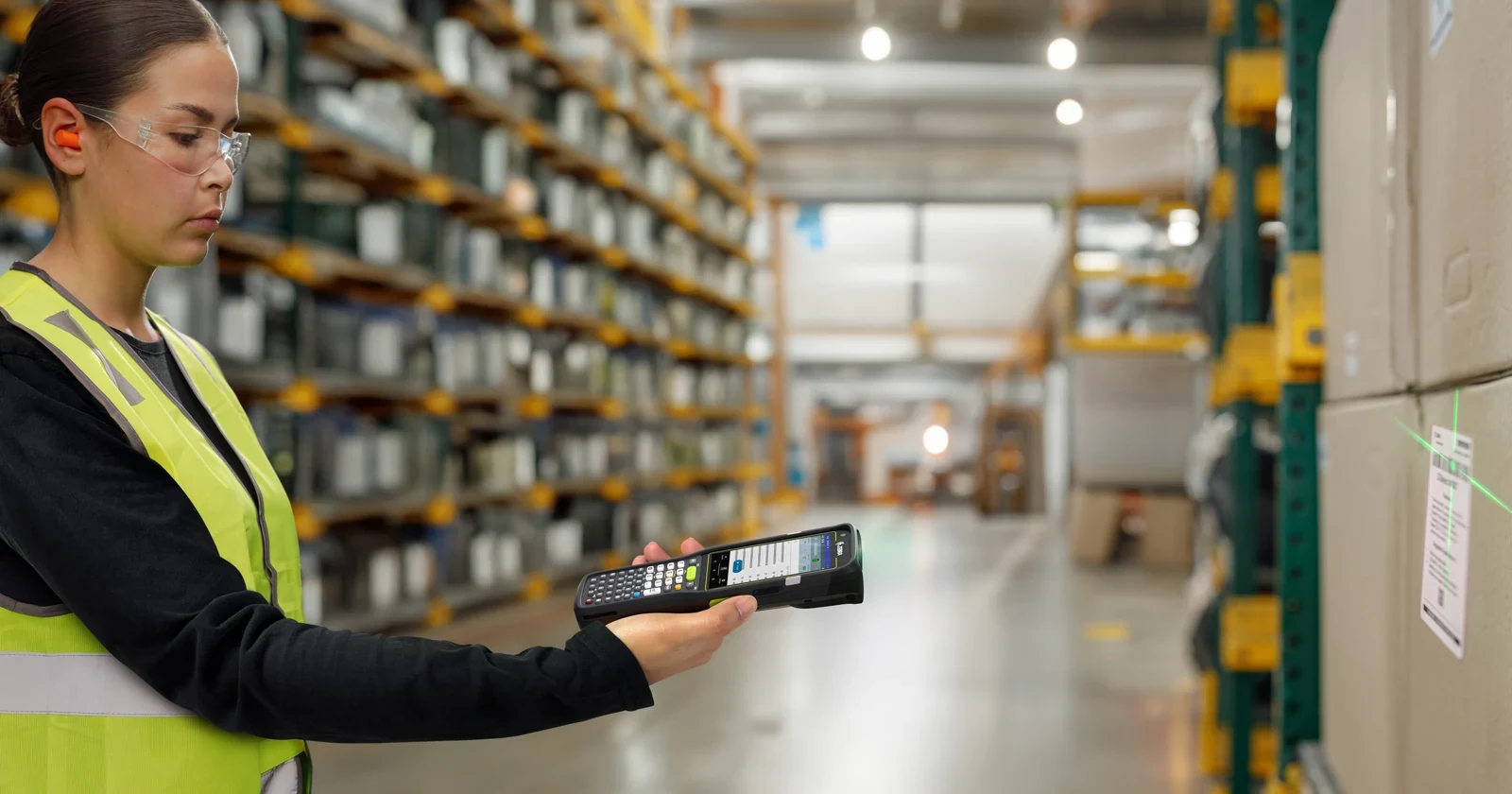
With paper stock sheets, the count can pass through several hands: somebody prints the list, a worker writes quantities, and somebody enters the results into a spreadsheet or stock system. A counting app with a barcode scanner can capture the product and location at the shelf and record the observed quantity there. It removes a separate transcription step when the app is connected to the stock system.
Raptool WMS lists mobile stocktaking with barcode reading on a mobile device, alongside apps for Android, iOS, Windows and Mac. The comparison below explains a counting workflow to configure around that capability. Recount rules, blind counts, approvals and movement controls need to be agreed for the installation.
Barcode stocktaking vs paper count sheets
| Step | Pen and paper | App + barcode scanner |
|---|---|---|
| Prepare the work | Print and distribute sheets; control versions and assigned areas. | Assign locations or count jobs in the configured workflow. |
| Identify stock | Read shelf labels and product descriptions or codes. | Scan the location and product; validate them against the configured count task. |
| Record quantity | Write the observed quantity and unit clearly. | Enter the physical count and unit on the device; check required fields. |
| Transfer results | Type results into the stock system or spreadsheet. | Submit through the app connection; define any offline synchronisation separately. |
| Resolve differences | Track sheets, questions and recounts manually. | Use a configured review queue and recount process before posting adjustments. |
| Cost and effort | Low equipment cost, but recurring printing, handling and transcription. | Devices, software and setup cost; potential reduction in administration and re-entry. |
Paper can suit a small, infrequent count or a controlled fallback procedure. A scanning app becomes more useful as locations, similar products and repeated counts increase. Compare the work involved in getting an approved result into the stock record.
What happens at the shelf?
Imagine location A-12-03 contains blue gloves. The stock record says 24 units, but the worker finds 22. The following example shows the same physical count with two ways of recording it.
Scan → count → submit → review
- Scan A-12-03 to establish the location.
- Scan the gloves’ product barcode and check the correct unit of measure.
- Count the physical stock and enter 22 units. In a blind count, the expected 24 stays hidden from the counter.
- Submit the count. The review process compares 22 with the balance at the agreed count time.
- Investigate the two-unit difference and recount if required. Post an authorized adjustment only after the agreed checks.
This illustrates a workflow to configure; it is not a live app demonstration.
Read → count → write → enter → review
- Find A-12-03 on the assigned sheet and read the product code.
- Count the gloves and write 22 units on the correct line.
- Return the sheet and enter 22 into the spreadsheet or stock system.
- Compare the entered result with the balance at the agreed count time.
- Trace the sheet, investigate the difference and record any recount and authorized adjustment.
Use controlled sheets and clear ownership so lines are neither lost nor counted twice.
A barcode identifies the item. It does not measure the quantity.
A product scan can help catch the wrong SKU when the app validates it. It does not show how many units are on the shelf. The worker still counts and enters the result. A scan-each-unit mode can increment a counter, but it needs a clear rule for accidental repeat scans. A case barcode may represent a pack of 12 while the inventory unit is one piece; map that conversion before counting.
Damaged labels, products without codes, mixed bins and unexpected stock need an exception route. Never force a worker to select a similar product just to finish the screen. Record zero stock explicitly where required; an uncounted location should remain distinguishable from a location counted as empty.


Build the controls around the count
Use blind counts where they help
Hiding the expected balance helps keep the physical observation separate from the book figure. Compare the result afterwards. A difference should lead to investigation, not an automatic instruction to change the count to the expected number.
Make the count time clear
A delivery, pick or transfer during counting can create an apparent discrepancy even when both records were correct at different times. Define a cut-off, freeze the relevant location or reconcile movements around the count timestamp. An app connection alone does not solve this.
Review differences before adjusting stock
Check the location, product, unit, open movements and any second count. Give adjustments an owner and an audit trail. Microsoft’s cycle-counting documentation illustrates the separation between assigning count work, entering results on a mobile device and reviewing differences. Those are documented Dynamics 365 controls, not evidence of identical Raptool settings.
Count smaller areas more often
A cycle-count programme checks selected stock over time instead of relying only on a single large count. Start with locations that cause discrepancies or missed picks. The frequency and approval policy should reflect the operation; any formal reporting requirements still need their own process.
What could app-based counting save?
40% less time per count line
Assume 120 seconds with paper and later entry, compared with 72 seconds in the app. At 60,000 item-location counts a year, that frees 800 hours: €24,000 of labor capacity at €30/hour, before project costs.
These timings include identifying stock, physical counting and recording or re-entering the result. The example assumes the physical counting takes the same time with both methods. The improvement comes from identification and administration. One item counted in two bins is two count lines; repeated cycle counts also count as separate observations.
| Task | Paper | Barcode app |
|---|---|---|
| Find and identify the count line | 15 | 10 |
| Handle and count the physical units | 45 | 45 |
| Record at the shelf | 15 | 17 |
| Later transcription | 45 | 0 |
| Total | 120 | 72 |
Try your own counting costs
Change the assumptions. Results show capacity value, not guaranteed cash savings.
40% less time per count line. €20,400 after annual running costs; €14,400 in year one after running and upfront costs.
At the example’s assumed €3,600 annual running cost and €6,000 upfront cost, capacity value after both costs in year one is €14,400. These budgets are illustrative, not Raptool or scanner price quotes. Payroll falls only if the released time removes paid hours, overtime or temporary labor. Redeploying the team creates capacity. Do not add another re-entry saving if it is already included in the timings.
Test one zone before the next full stocktake
Use the same locations, product mix and counting controls for both methods. Time preparation, counting, transcription, review and recounts. Include a mixed bin, an empty location, a case-to-piece conversion, an unreadable label, unexpected stock and a movement during the count. Check that repeated submissions cannot create duplicate results.
Compare time per approved count line, differences confirmed by a second count and how long it takes to finish reconciliation. Test connectivity at the actual shelves; if offline counting is required, validate conflict and synchronisation rules for the selected setup. Those results provide a firmer business case than a scanner’s advertised scans per second.
Stocktaking questions answered
Does scanning a barcode count all the stock?
No. A normal product barcode identifies a product or pack. The worker must still count and enter the quantity, or deliberately scan each unit in a configured increment mode. Scanning one carton does not reveal its contents.
Can Raptool WMS be used for stocktaking?
Yes. Raptool’s WMS page lists mobile stocktaking using barcode reading on a mobile device. Confirm the counting form, validation, recount and approval setup for your installation.
What is a blind stock count?
A blind count hides the expected balance from the counter. The worker records the observed quantity before a separate comparison and review. This is a counting control to configure, not a claim that every app enables it automatically.
Can counting continue while goods move?
Only with a defined movement-control procedure. Use a count cut-off, a location freeze or transaction reconciliation to ensure the count and system balance refer to the same point in time.
Does recording a count immediately change stock?
That depends on the configured workflow. A submitted count can be held for review and recount before an authorized adjustment is posted. Define the approval and audit trail.
How much money could barcode stocktaking save?
The illustrative example saves 48 seconds per item-location count across 60,000 counts a year: 800 hours, valued at €24,000 at €30/hour before project costs. These are assumptions, not measured Raptool results. Cash savings require actually avoiding paid work.
Tags
Bring stock counting to the shelf. Plan the mobile form, barcode checks and review process with Raptool.
Explore Raptool WMS