

Bring Business Central warehouse tasks to the person doing the work.
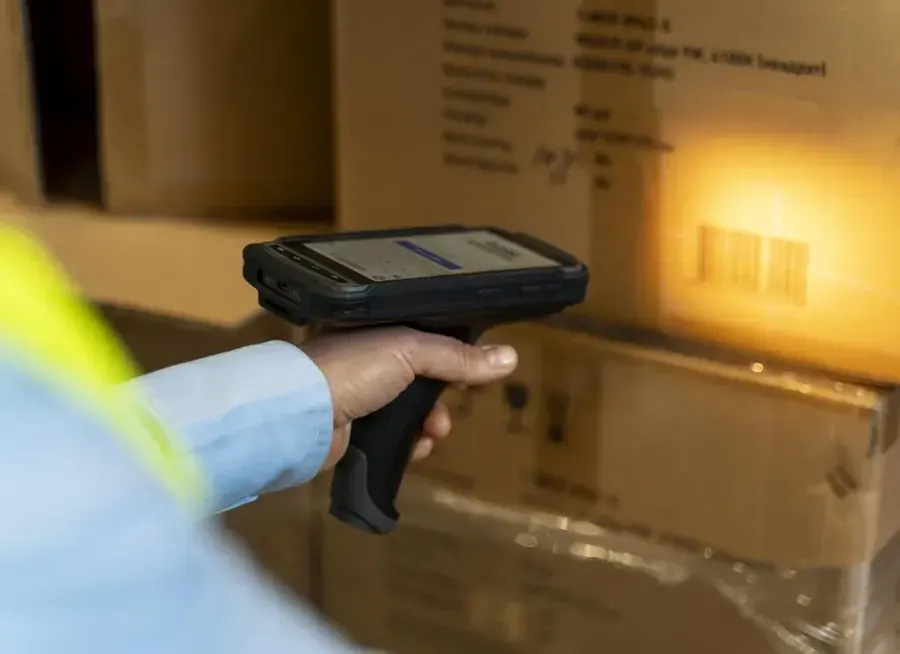
A printed pick list travels well around a warehouse. The delay comes afterwards: someone has to interpret the notes, enter the quantities and tell the office what happened. A mobile workflow can capture that result at the shelf, with the product and quantity checked while the goods are still in front of the worker.
Raptool WMS describes mobile picking, receiving and stocktaking. This guide explores how to plan those processes around Microsoft Dynamics 365 Business Central, using its warehouse documents and the location setup already in place.
Scope the connection for your installation. Raptool’s public integration listing names Dynamics AX and Navision. That is not confirmation of a ready-made Business Central connector. Ask Raptool to confirm the supported version, online or on-premises deployment, documents and posting actions.
Four jobs to move off the paper list
| Job | At the device | What to agree |
|---|---|---|
| Order picking | Open assigned lines, scan the item and enter the quantity handled. | Which pick document is used and whether completion registers a pick or posts a shipment. |
| Goods receiving | Check arriving items and record accepted quantities. | The receipt document, partial deliveries and damaged goods. |
| Put-away | Confirm where received goods are placed. | The destination bin and how the put-away step is completed. |
| Stocktaking | Identify the item, count it and record the observation. | The count process, review of differences and authorized adjustment. |
The useful change is a clear handover: the worker records the agreed result once and can see whether it was accepted. Start with the task that creates the most repeated entry or the longest delay for the office.
Choose the Business Central warehouse route first
Business Central supports different picking flows. Microsoft’s picking guide explains that an Inventory Pick can combine picking and shipment posting. With a Warehouse Pick, staff register the pick and post the warehouse shipment separately. The location’s warehouse settings determine the intended process.
That distinction changes what a button labelled “Complete” should do. Agree the document and action behind it, then make the screen clear to the worker. Avoid promising one generic completion step across every warehouse configuration.
Receiving also has several routes. Microsoft’s receiving guide describes direct order posting, inventory put-away and warehouse receipt processes, with a separate put-away step in advanced configurations. Match the app to that route so “received” and “placed in the storage bin” have the right meaning.
Explore three mobile workflow examples
These examples are briefs for a configured solution, not a live Business Central connection.
Identify the item and confirm the handled quantity
- Open the assigned task from the agreed Business Central document.
- Show the location, bin, item and required unit.
- Scan the mapped barcode and record the quantity handled.
- Submit through the configured registration or posting action.
Test a shortage and a split pick across two bins. Give the worker an explicit result when the task is accepted or needs attention.
Record the delivery, then follow the put-away process
- Open the agreed incoming delivery reference.
- Scan each item and check cases versus pieces.
- Record accepted quantities and exceptions.
- Complete the agreed receipt step and any required put-away task.
A partial delivery should leave the remaining quantity clear. Decide how staff handle a damaged case or a different item without quietly accepting it as expected stock.
Capture the count beside the stock
- Select the assigned location, bin and counting area.
- Scan the item and physically count the units.
- Enter the observed quantity and count time.
- Send the result to the agreed review and adjustment process.
A scan identifies an item; it does not measure the shelf quantity. Keep an uncounted line separate from a confirmed zero, and agree how movements during counting are handled.


Keep the physical count and the stock adjustment connected
Microsoft’s inventory-counting guidance describes physical counts and journal-based adjustments. For multi-step warehouse processes, warehouse entries and item-ledger entries require the appropriate synchronisation. A mobile counting screen must feed the process used by that location.
Agree who reviews differences, when an adjustment is authorized and which record proves it happened. Faster data capture helps only if the resulting balance is trustworthy. Measure the time spent resolving exceptions as well as the time spent scanning.
Use the API that supports the actual job
Raptool’s integration tools describe data and web-service connections. Microsoft’s Business Central API documentation explains REST-based connections and notes that online APIs are enabled by default; on-premises setup needs separate checking. API availability alone does not establish a working Raptool connector.
Check the operations published in the customer’s environment. Do not assume every warehouse document or posting action is available through a standard API. The project may need a custom API or extension. Confirm authentication, permissions and the correct company before exchanging records.
Map item identifiers, units, locations, bins and any required lot or serial numbers. Decide which system owns the stock transaction, and give each submitted result a traceable reference. Test retries so a repeated message cannot create a second receipt or adjustment. If offline work is required, validate collection, synchronisation and conflict handling in the chosen setup.
What could less re-entry save?
360 hours / 162,000 SEK per year
Assume 90 seconds less paperwork, later entry and status chasing per order, across 60 orders a day and 240 working days. At 450 SEK per hour, the released time represents 162,000 SEK in annual labor capacity before costs.
| Calculation | Example |
|---|---|
| Orders per year | 60 × 240 = 14,400 |
| Time released | 14,400 × 90 seconds ÷ 3,600 = 360 hours |
| Gross annual capacity value | 360 × 450 SEK = 162,000 SEK |
| Assumed annual running costs | 30,000 SEK |
| Annual value after running costs | 132,000 SEK |
| Assumed upfront costs | 36,000 SEK |
| First-year value after both costs | 96,000 SEK |
These assumptions are not Raptool or Microsoft prices. Budget for devices, licenses, integration, support, training and rollout. The example assumes no faster walking, fewer errors or extra sales. Count each removed activity once.
Released hours create capacity. Cash savings arise when they avoid paid work, overtime or outside costs. Measure the complete order process before and after the pilot to see which kind of benefit your team achieves.
Pilot one location and one complete process
Choose a receiving, picking or counting workflow with an owner and a result you can check. Use the actual Business Central company, document route and representative product data in a suitable test environment. Include case-to-piece quantities and realistic bin assignments.
Test an ordinary task, a wrong item, a partial quantity, a repeated submission and an interrupted connection. Compare the mobile result with the expected warehouse and inventory records. Measure preparation, shelf work, office entry and corrections before expanding to more locations.
Raptool and Business Central questions answered
Can Raptool connect to Business Central?
Raptool documents integration tools and lists Dynamics AX and Navision among systems its partners work with. That does not establish a ready-made Business Central connector. Confirm connector availability, deployment and supported warehouse operations with Raptool.
Does confirming a pick also post the shipment?
It depends on the Business Central process. Posting an Inventory Pick can post the shipment. Registering a Warehouse Pick does not itself post the shipment. The app must follow the route configured for the location.
Which workflows are good candidates?
Picking, goods receiving, put-away and stocktaking are useful processes to scope. Agree the Business Central document, quantity, bin and completion action for each mobile task.
Can a barcode scanner count stock automatically?
A product barcode identifies an item or pack. Staff must still count and enter the observed quantity, or use a deliberately configured per-unit scan mode. Count differences need the agreed review and adjustment process.
Does every warehouse operation have a standard API?
Do not assume it does. Check the APIs and operations published in the actual Business Central environment. Warehouse tasks may require custom APIs or an extension; the exact integration must be scoped and tested.
What savings does the example show?
The hypothetical example removes 90 seconds of administration from each of 60 daily orders over 240 working days. That releases 360 hours, valued at 162,000 SEK annually before costs at 450 SEK per hour. It is not a measured result or automatic payroll saving.
Tags
Choose the warehouse task you want to improve. Ask Raptool to confirm the Business Central connection and scope a pilot.
Explore Raptool WMS